
Limecraft Edge allows you to securely offload camera card media to one or more external drives. During the offload process, Edge can verify copied files and create manifest files, including ASC Media Hash List files, so production and post-production can confirm that media has been copied completely and reliably.
This allows production crews to reuse camera cards once the offload is complete, while keeping a verifiable record of the transfer for post-production, ingest, archive or handover to external partners.
TABLE OF CONTENTS
Before you begin
Make sure the project is configured correctly in Limecraft Edge settings in both Limecraft Workspace and the Edge desktop application. Most importantly, check that the shared storage volumes are properly set up and available for use, as described in this article.
Limecraft Edge can be used to set the offload path and to apply proper file names. To set these up, see the appropriate sections to configure offload paths and file naming conventions.
Before starting an offload, review the verification settings in the Limecraft Workspace settings.
You can configure:
- Whether written bytes should be verified. This is recommended.
- Which checksum algorithm is used: MD5, xxHash 64 or xxHash 3 64-bit.
- Which manifest format Edge should write, including ASC MHL where required by the production or post-production workflow.
Use ASC MHL when the offload needs to be verified later by another system, post-production facility or MHL-capable tool.
What is an ASC MHL file?

An ASC Media Hash List file is a standardised manifest containing checksums for media files. It travels with the media and allows another system or facility to confirm later that the files are identical to the files originally offloaded. This is useful when material moves from set to post-production, archive or external partners.


More info: https://support.limecraft.com/support/solutions/articles/48001265975-media-hash-list-mhl-
Steps for Offloading and Backing up with Edge
1. Select the Source Material
In the Import & Backup tab, select one or more sources to back up, then click Continue. Often there is only one source as the camera cards are offloaded one by one.
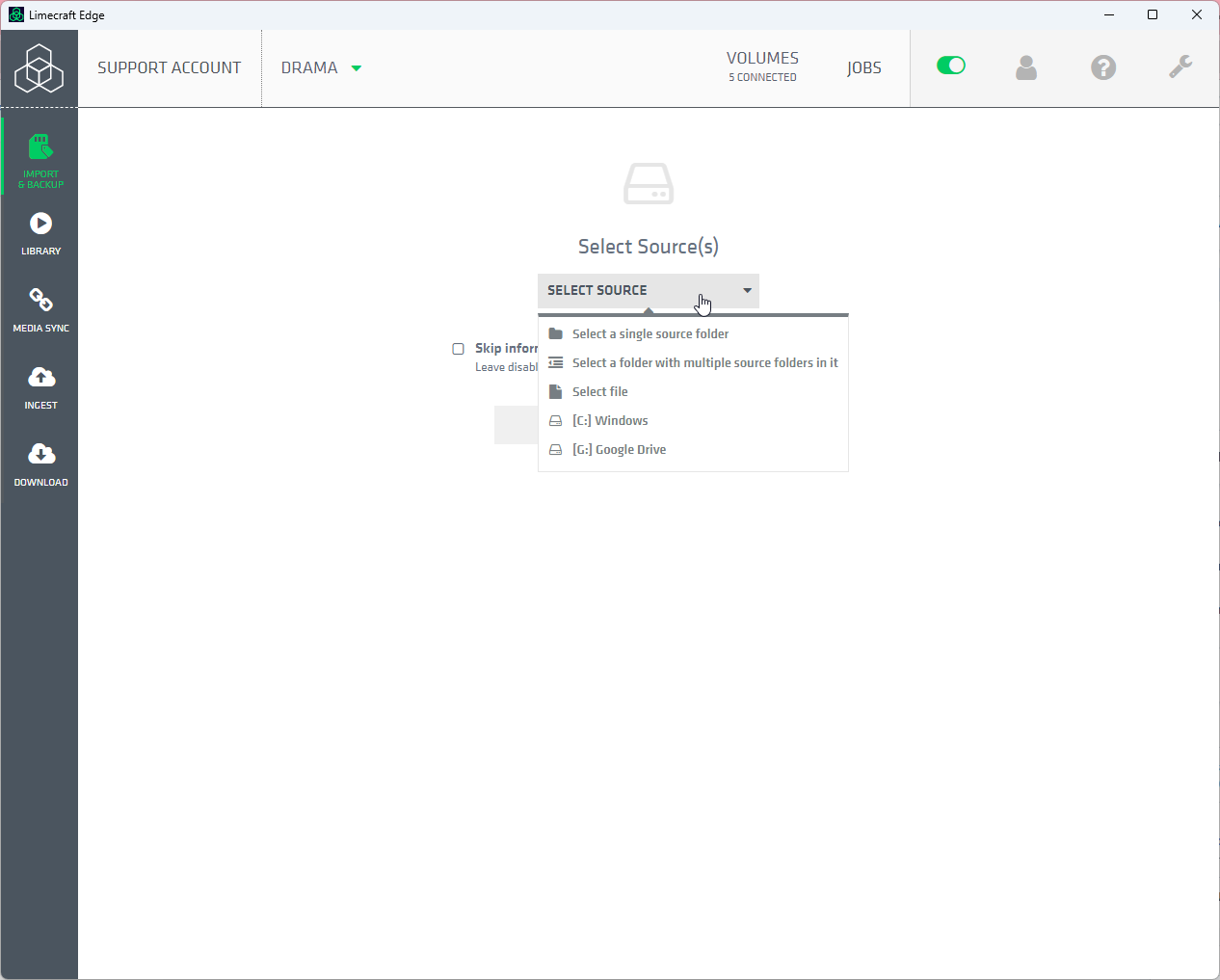
2. Select the Destination
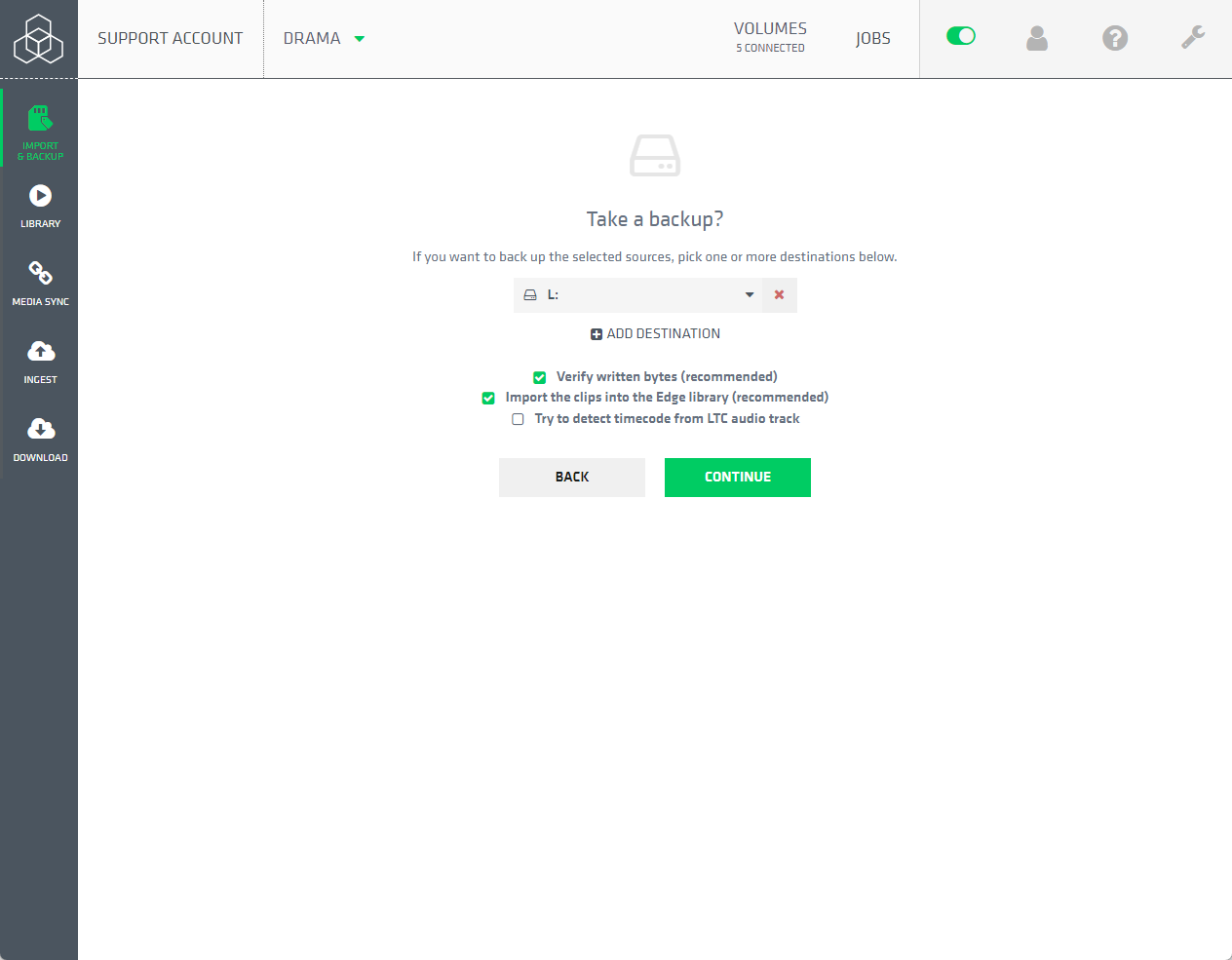
Select one or more destinations to back up and offload your card. It is also possible to import the media without backing up by clicking 'Continue without backup'.
NOTE: If backup volumes were configured in the Edge Settings, those will appear automatically in the dropdown list in Edge when selecting a Backup destination.
Backup is done in parallel to all selected destinations. File verification is enabled by default and should normally remain enabled. Depending on the project settings, Edge can also generate manifest files, including ASC MHL files, in the destination folder. These files help document the offload and allow the copied media to be verified later.
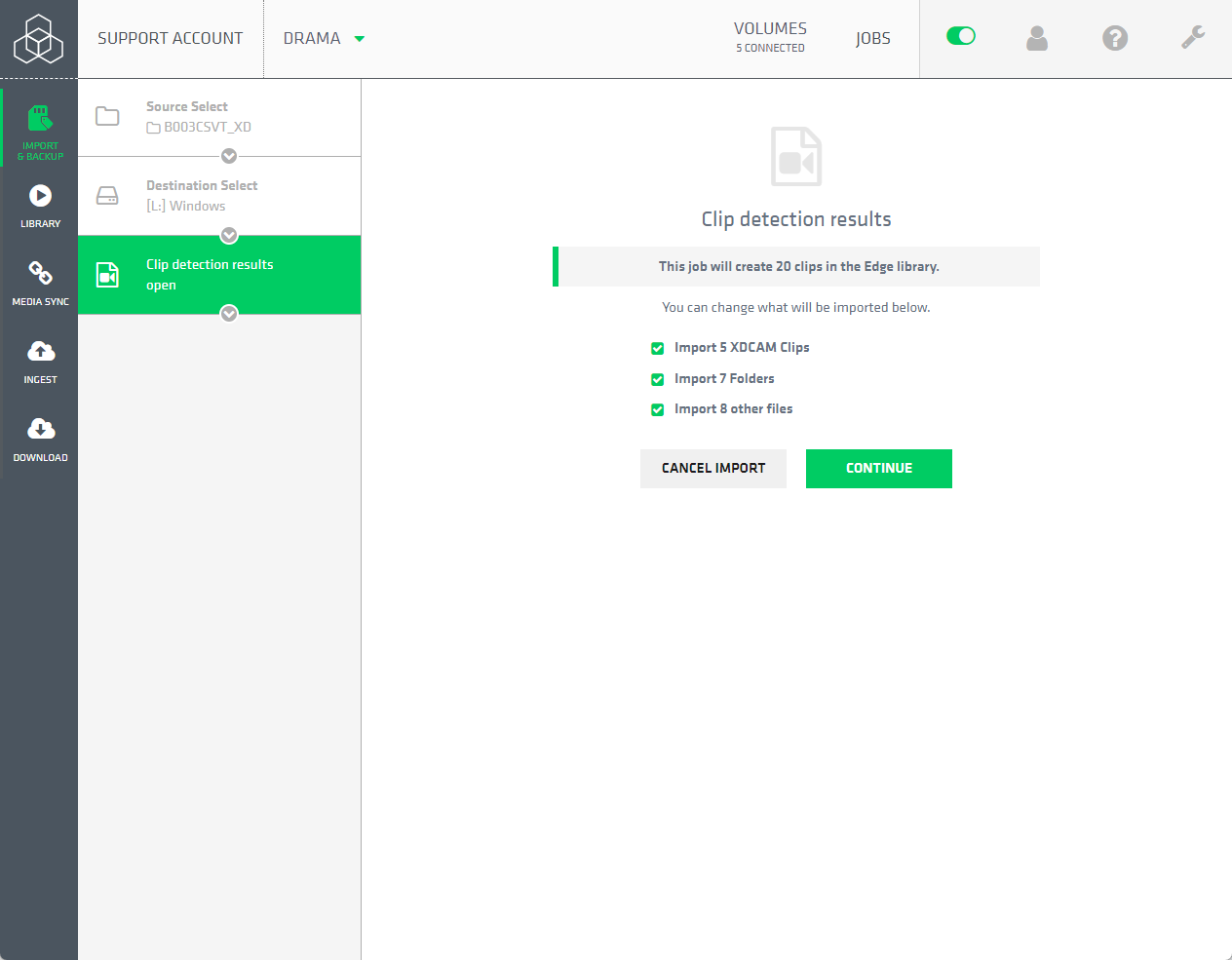
3. Confirm the Selection
If the source contains multiple clips, an analysis of the clips and their types will be displayed. Confirm your selection to proceed.
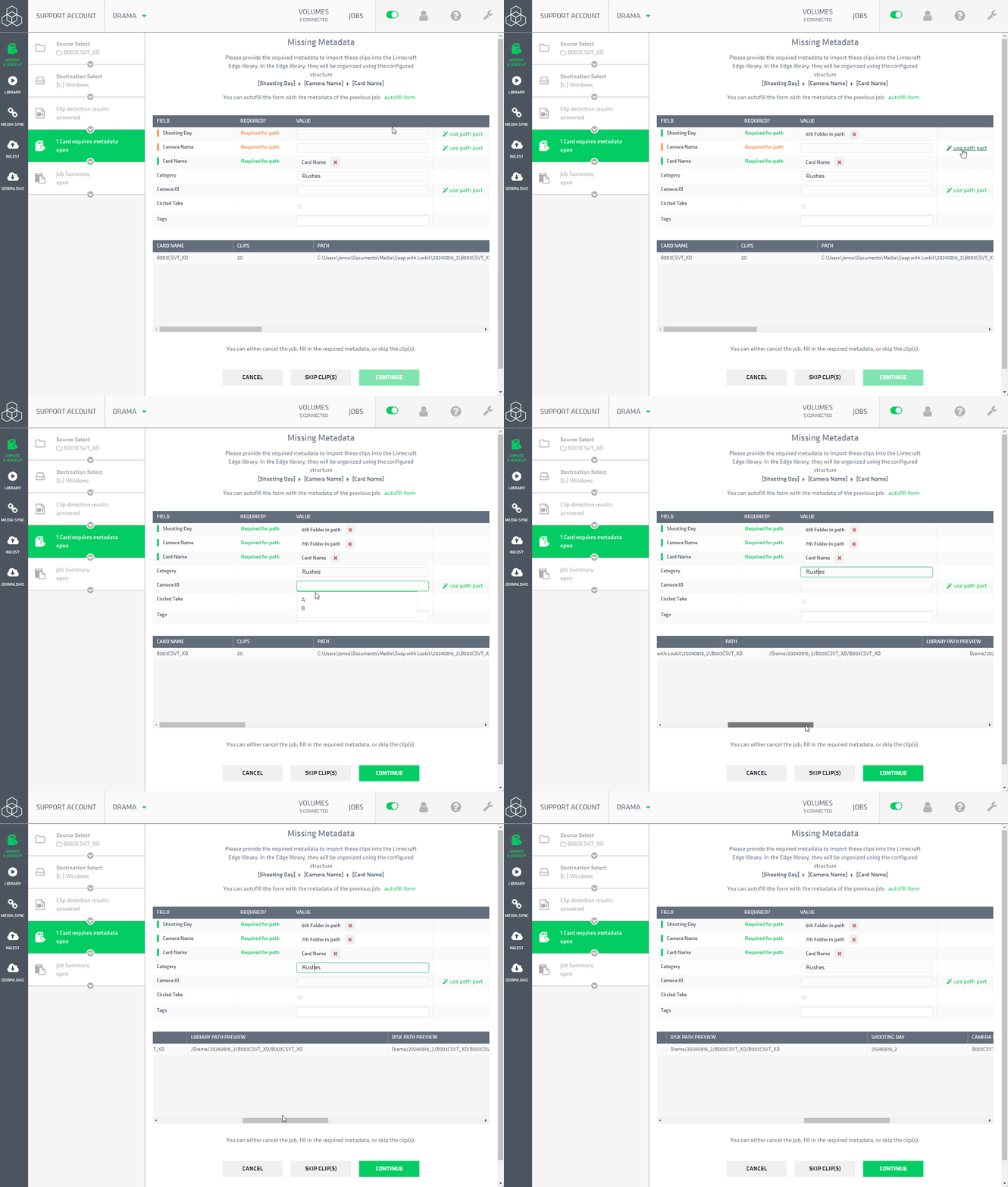
4. Fill in the Required Metadata
The metadata requested in this step depends on the Edge Metadata Settings in the Limecraft Workspace. These settings determine the offload path on the backup drives, as well as the library structure in Limecraft Workspace if Edge is used to transfer the files after offload.
Centrally defined metadata and offload structures ensure that media remain well-organised and easy to locate throughout the entire production process.
NOTE: Please do not remove the 'Card name' from the path. It is essential for organising the media correctly. If the card name is not shown, write it in the field manually.
- Use a path part to automatically suggest metadata based on the source path. This speeds up the process and reduces the risk of errors.
- Keep an eye on the file path preview in the lower part of the screen, as shown below.
5. Confirm and Start the Import/ Backup Process
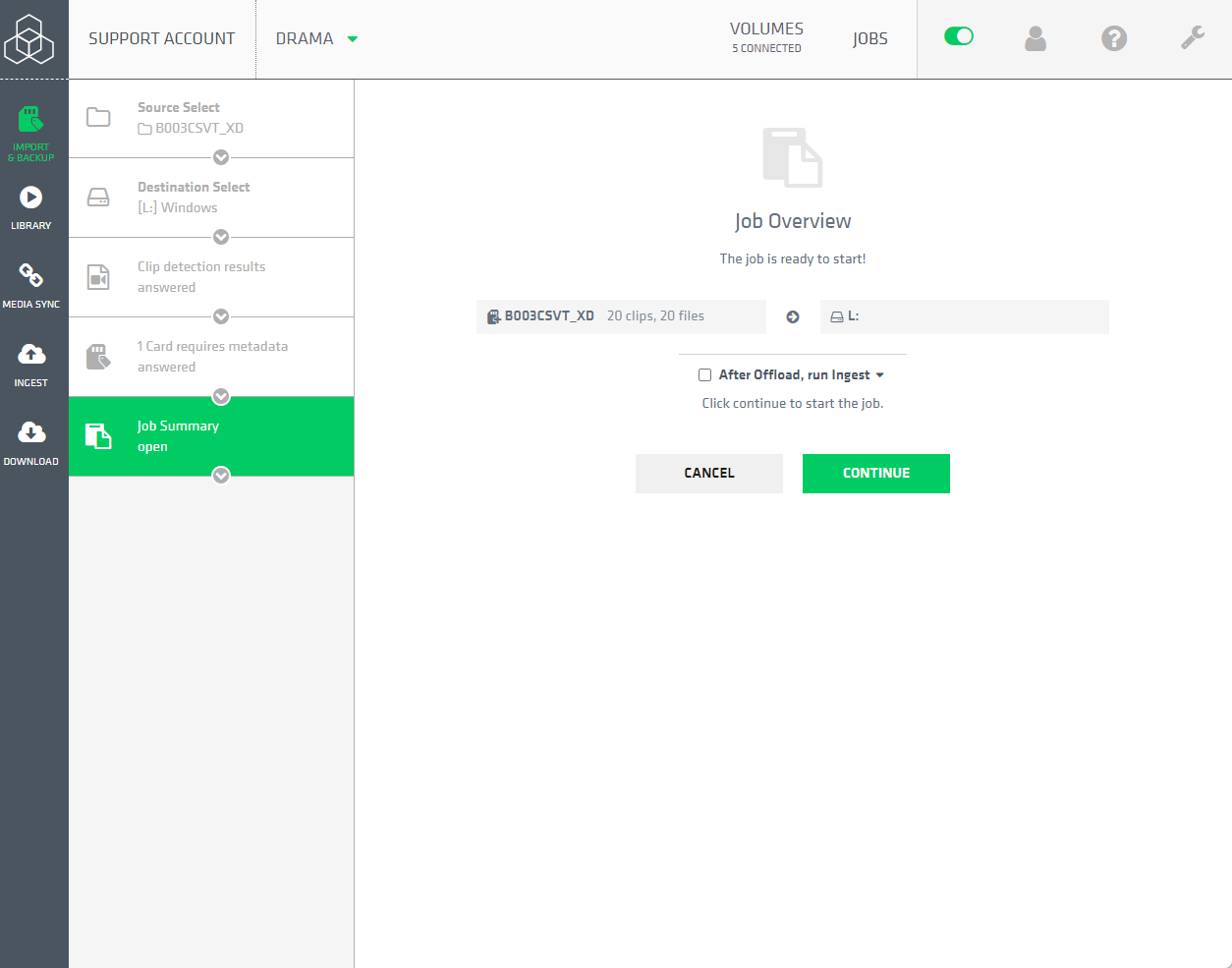
Review the job overview, then click 'Continue' to start the import and backup process.
6. Follow the Progress in the JOBS Overview
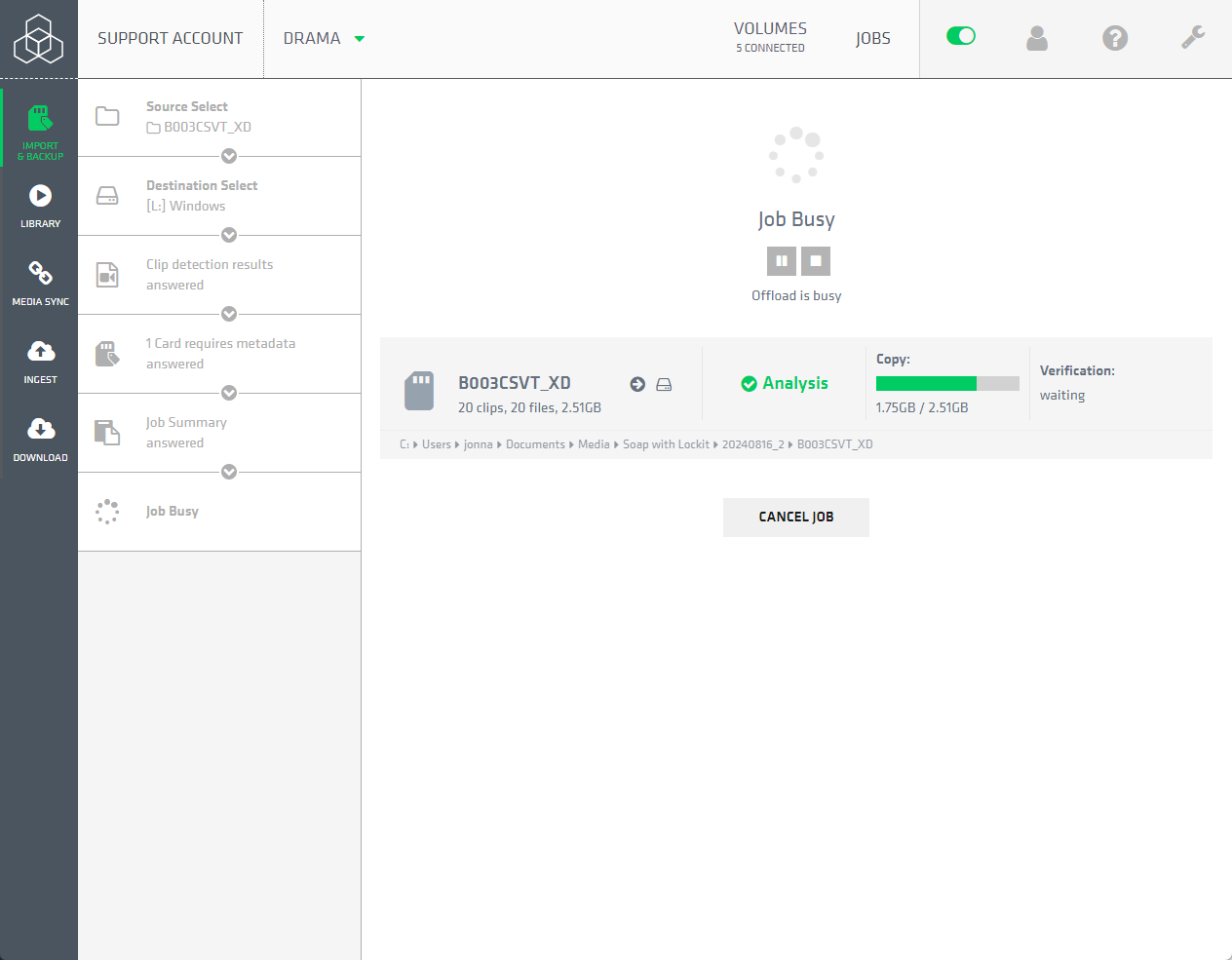
You can track the progress on the page that opens next, or navigate to the JOBS overview via the upper toolbar to monitor the status.
7. After Offload
When the offload is finished:
- The files have been imported into the Edge Library and saved to the selected backup locations according to the predefined offload structure.
- Limecraft Edge saves a human-readable report in the backup or offload folder.
- Limecraft Edge also saves machine-readable manifest information. Depending on the project settings, this can include JSON and ASC MHL files.
- The MHL file is written alongside the copied media and contains the checksums required for later verification in MHL-capable tools and post-production workflows.
- A full overview of offload jobs can be found in the Cards section of the Limecraft Workspace settings.
Important: Do not remove the manifest or MHL files from the backup volume. They are part of the verification record for the offload.
After offload, Edge can automatically audio sync material, transcode it, and ingest the files into Limecraft Workspace or other storage locations.