
Manual subtitling, as opposed to Automated Subtitling, is essential when automated speech recognition (ASR) cannot deliver reliable results, such as with poor audio quality, unsupported languages, or content that requires editorial precision. Limecraft includes a dedicated Subtitle Editor that allows users to create subtitles manually, control timing and spotting, and preview subtitles directly on the video. This article explains when manual subtitling is the preferred approach and provides step-by-step guidance on how to create and edit subtitles manually in Limecraft Flow as part of a professional subtitling workflow.
Getting Started with Manual Subtitling
Before getting started, make sure to have media content available in your Limecraft Library and to access the Subtitle Editor.
To start manual subtitling, choose the option 'Start writing subtitles from scratch' and click 'start writing'.

Choosing Subtitle Presets and Styling
If there are subtitle presets defined for your workspace, select the correct before engaging the editor. This will impose the styling for your subtitles. The timing will be created manually while making the subtitles, as will be shown below.
How to Create Subtitles Manually in Limecraft
Use the subtitling tools above the player bar to create subtitles manually.
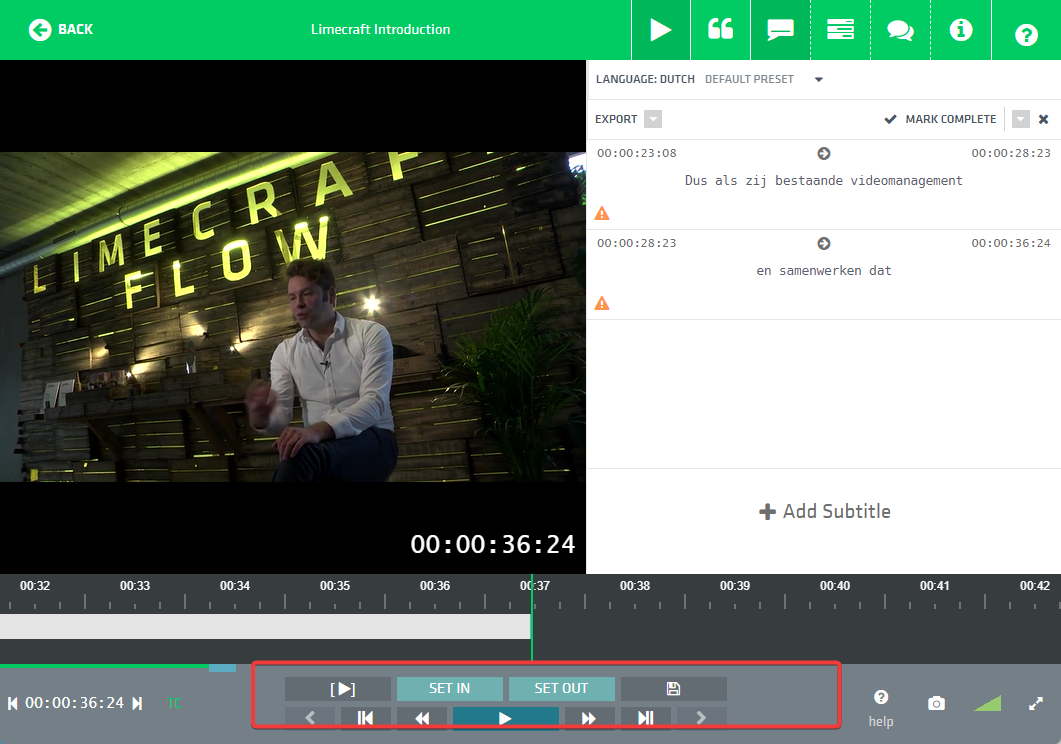
Step 1: Play your video and identify speech.
Step 2: Set the Subtitle IN Point
Click SET IN or the shortcut F9 to select the appearance time for your subtitle. The player keeps on playing, and the control buttons change to indicate a time range is being “recorded”.
Step 3: Set the Subtitle OUT Point
Click SET OUT to select the disappearance time for your subtitle

Note: Clicking on '+ Add Subtitle' automatically starts recording the time range for the next subtitle.
Step 4: Add and Edit Subtitle Text
Click '+Add Subtitle' in the bottom right of the subtitling pane to type the content for your subtitle. The application will show a live preview of the subtitle over the player.

Note: You can further edit the position, color etc of your subtitles as is explained in this article.
Step 5: Save and Preview the Subtitle
Save your subtitle by clicking anywere outside the subtitle eding box or shift key + Enter.
Tip: You don’t have to wait for the player to reach the desired OUT point to start typing your subtitle.
Using Keyboard Shortcuts for Faster Manual Subtitling
The fastest way to create subtitles for a clip is to use the keyboard shortcuts.
Press F9 (SET IN), which starts “recording”. You can press F9 again a couple of times if you want, to move your IN point with the playhead. Type the subtitle text you hear and press F10 when you reach the desired OUT point. Continue typing the subtitle text and press Shift+Enter to save the subtitle.
If you are using a mac (and on some other devices), the shortcut is fn+F1, fn+F2, … So you have to press and hold the fn key while pressing the F1 key (and similar for F2, F3, …). As this is a bit clunky, you might consider configuring your Mac to use F1, F2 etc. as standard function keys as explained here.

Another shortcut you can use is with the letters J, K and L on your keyboard:
- J: 'playerSlower'
- K: 'togglePlay'
- L: 'playerFaster'
Tips for Accurate and Efficient Manual Subtitling
For accurate manual subtitling,
- focus on clear segmentation of speech into readable subtitle cues and ensure timing aligns closely with the audio without cutting words or sentences unnaturally.
- Use keyboard shortcuts to speed up spotting and reduce reliance on mouse interactions, especially when setting IN and OUT points.
- It is recommended to preview subtitles regularly during editing to verify readability, line breaks, and on-screen positioning.
Next Steps in Your Subtitling Workflow
Download Subtitle Editor Cheat Sheet
Download the cheat sheet, print it, and hang it on your wall! Download Subtitle Editor Cheat Sheet