
Managing user access is an important part of keeping your Limecraft environment organised and secure. Limecraft offers two ways to manage access: team-based access control at account level and workspace roles at workspace level.
You can use these methods separately or combine to manage access across your account and individual workspaces.
This article explains how access management works in Limecraft, how to view users' existing permissions and how to manage or revoke their access.
TABLE OF CONTENTS
- Two ways to manage user access
- View and manage user access at account level
- Edit a user's access permissions
- Remove a user's access
Two ways to manage user access
Limecraft provides two complementary methods for managing user access: team-based access and workspace roles.
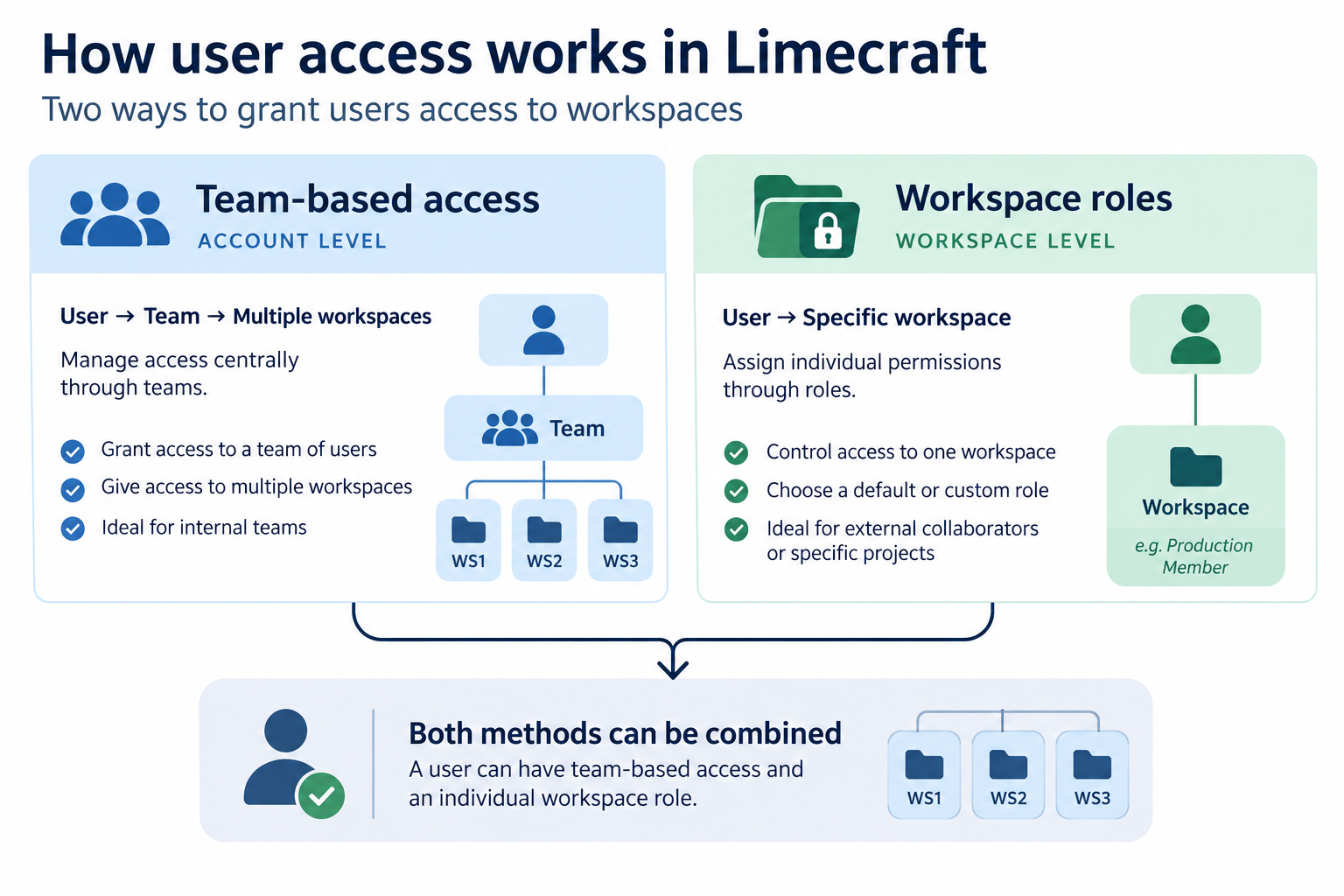
1. Team-based access control (account level)
Team-based access allows you to create multiple teams and assign users and workspaces to them. This makes it possible to manage access centrally at account level and grant users access to multiple workspaces through their team membership.
You can create as many teams as needed and add or remove users and workspaces as your requirements change.
Required permissions: Account Administrator.
For details instructions, see Manage Team-Based Access in Limecraft.
2. Workspace roles (workspace level)
Workspace roles allow you to grant individual users access to a specific workspace. You can assign one of the default roles or create custom roles to define precisely which permissions users should have within that workspace.
This is particularly useful when you want to give external collaborators or individual users access to specific workspaces without adding them to a team.
Required permissions: Workspace Administrator or Account Administrator.
For detailed instructions, see Manage Workspace Members and Roles in Limecraft.
Note: You can combine both methods. A user can have access to a workspace through team membership, an individual workspace role or both.
View and manage user access at account level
Account Administrators can view an overview of all users and their access their permissions across the Limecraft account.
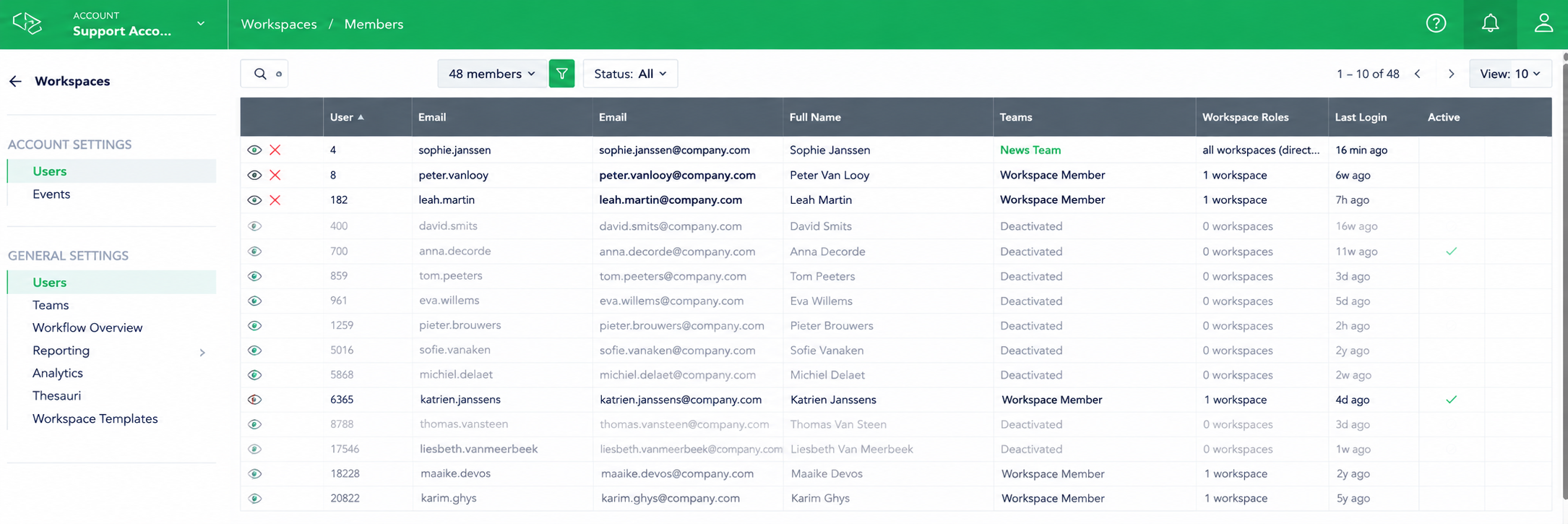
To view the user listing:
- Go to Account settings > Users.
- Browse the list of users in your account, including their usernames, email addresses and access permissions.
- To see which teams and workspace a user has access to, click the eye icon next to their username.
This gives you an overview of how each user has obtained access to your Limecraft environment.
Edit a user's access permissions
To change a user's access permissions:
- Go to Account settings > Users.
- Find the user in the listing.
- Click the eye icon next to their username to see their team and workspace access.
- Navigate to the relevant team or workspace to update their access permissions.
Depending on how the user has obtained access, you may need to make changes at account level (team membership) or workspace level (workspace roles.
For more information, see:
Remove a user's access
You can revoke access to a specific team, workspace or the entire Limecraft account.
Remove access to a specific team or workspace
To remove a user's access to a particular team or workspace:
- Go to Account settings > Users.
- Find the user and click the eye icon to view their current access.
- Identify the team or workspace from which you want to remove their access.
- Navigate to the relevant team or workspace settings and remove the user.
Important: If a user has access to a workspace through both team membership and an invidividual workspace role, removing only one of these access methods may not fully revoke their access to that workspace. Check both where necessary.
Remove a user from the entire account
To revoke a user's access to Limecraft completely:
- Go to Account settings > Users.
- Find the user in the listing.
- Click the red cross next to their username.
The user will be deactivated and will no longer have access to the workspaces and teams they belonged to.