
Limecraft notifications keep you informed about relevant activity, such as completed uploads, review comments, automated workflows, delivery submissions, and account activity.
Your notification preferences are personal. You can decide:
- Which events trigger a notification
- How you receive notifications
- Which workspaces you receive notifications from
Changes made in User Preferences are saved automatically and do not affect other users.
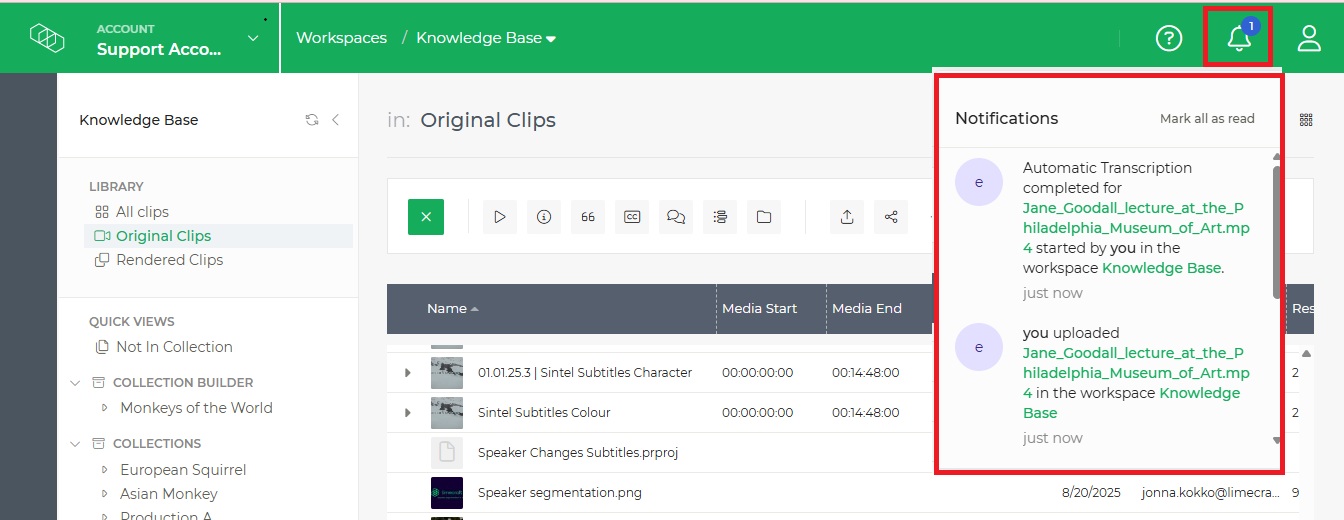
TABLE OF CONTENTS
- Configure Your Email and In-App Notifications
- Choose How You receive Notifications
- Available Notification Types
- Choose Between "Your" and "Any" Notifications
- Choose Which Workspaces Send You Notifications
- Recommended Notification Settings
Configure Your Email and In-App Notifications
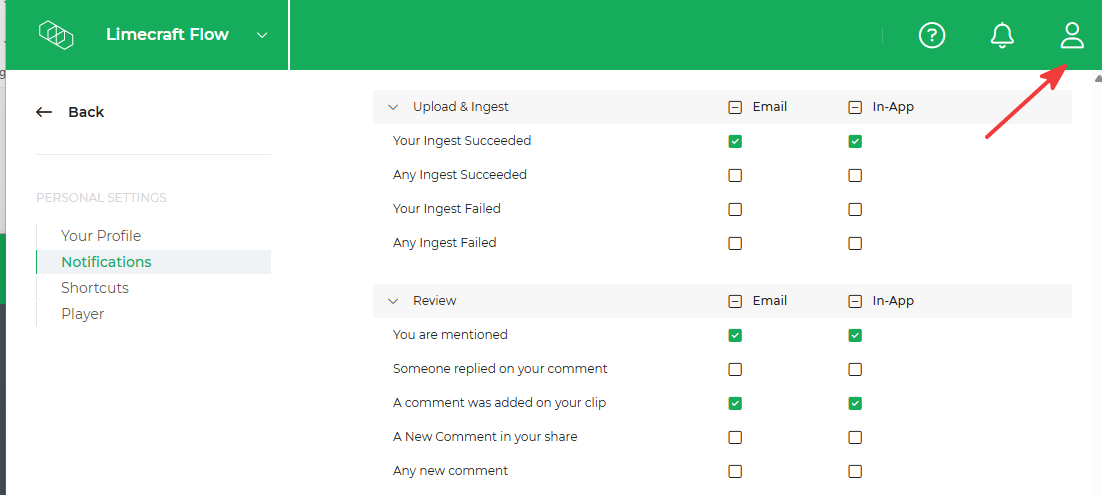
To configure your notification preferences:
- Click your profile icon in the upper-right corner of Limecraft.
- Select Preferences.
- Select Notifications.
- Find the event you want to follow.
- Enable In-app, Email, or both.
Your changes are saved automatically.
Choose How You receive Notifications
Limecraft offers three ways to receive notifications:
- In-app notifications appear in the Limecraft Workspace alerts. Each notification contains a link to the related item.
- Email notifications are sent as periodic digests containing alerts collected over a period of time.
- Mobile push notifications are delivered through the Limecraft Mobile App and are managed in the app.
If you need to be informed immediately, for example, when a longer-running workflow has been completed, consider enabling mobile push notifications.
View and Open In-App Notifications
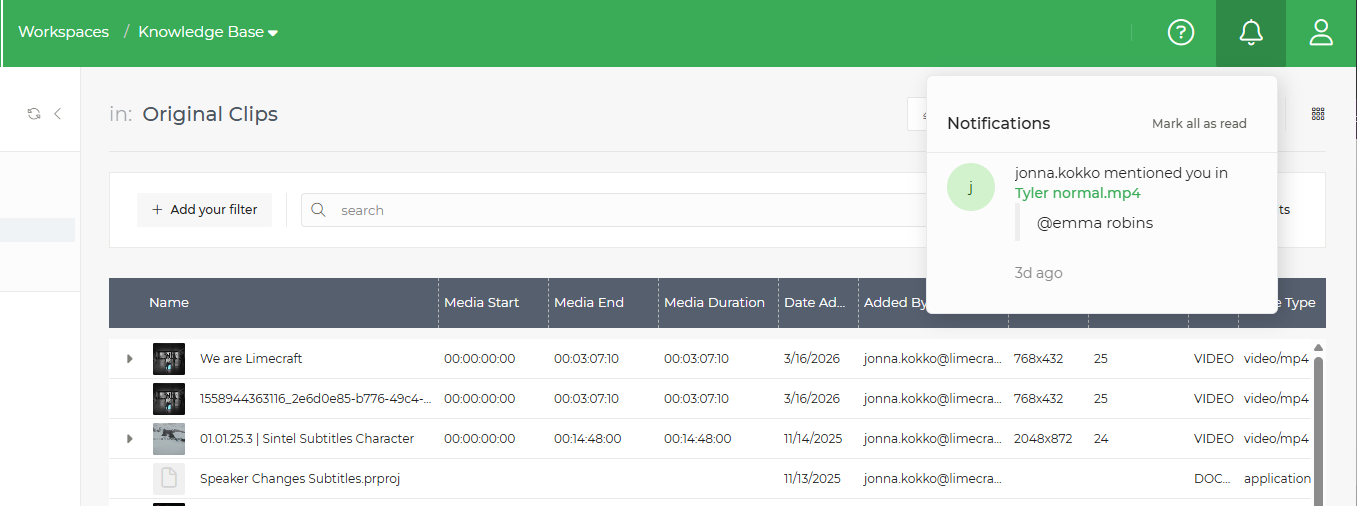
Click the bell icon to open notifications.
Notifications are shown in chronological order and remain available until you dismiss them. Each notification contains a link that takes you directly to the related item.
Enable Mobile Push Notifications
You can receive push notifications through the Limecraft Mobile App. Push notifications are useful when you need to be informed immediately, rather than waiting for an email digest or checking Limecraft in your browser.
Push notifications are managed separately in the Limecraft Mobile App.
For installation and configuration instructions, see Getting Started with the Limecraft Mobile App.
Available Notification Types
Notifications are grouped by activity type in User Preferences. Depending on your role, permissions, workspaces type, and the Limecraft features enabled for your account, these may include:
- Account and user management
- Delivery submissions
- Summarisation
- Upload and ingest
- Review activity and comments
- Transcription and translation
- Subtitling and subtitle burn-in
Open User Preferences > Notifications to see the complete and current list of notifications available to you.
For each event, you can choose whether to receive an in-app notification, an email notification, both, or neither. The available notification types may change as new Limecraft features and workflows are introduced.
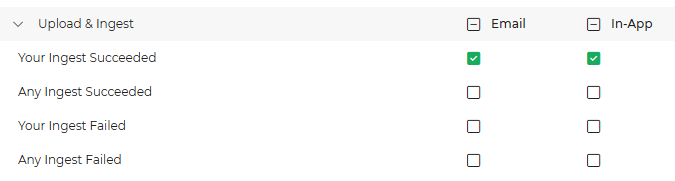
Choose Between "Your" and "Any" Notifications
Some events are available in two versions:
- Your... notifies you about workflows and actions that you started.
- Any... notifies you about matching activity initiated by anyone in a workspace you participate in.
For example:
- Your Ingest Failed alerts you when an ingest operation you started fails.
- Any Ingest Failed alerts you when an ingest operation started by any user fails.
"Any" notifications can be useful for administrators and workflow managers. However, they may generate many alerts in active workspaces.
Choose Which Workspaces Send You Notifications
The Workspace Notifications section at the bottom of the Notification page lets you control which workspaces can send you notifications.
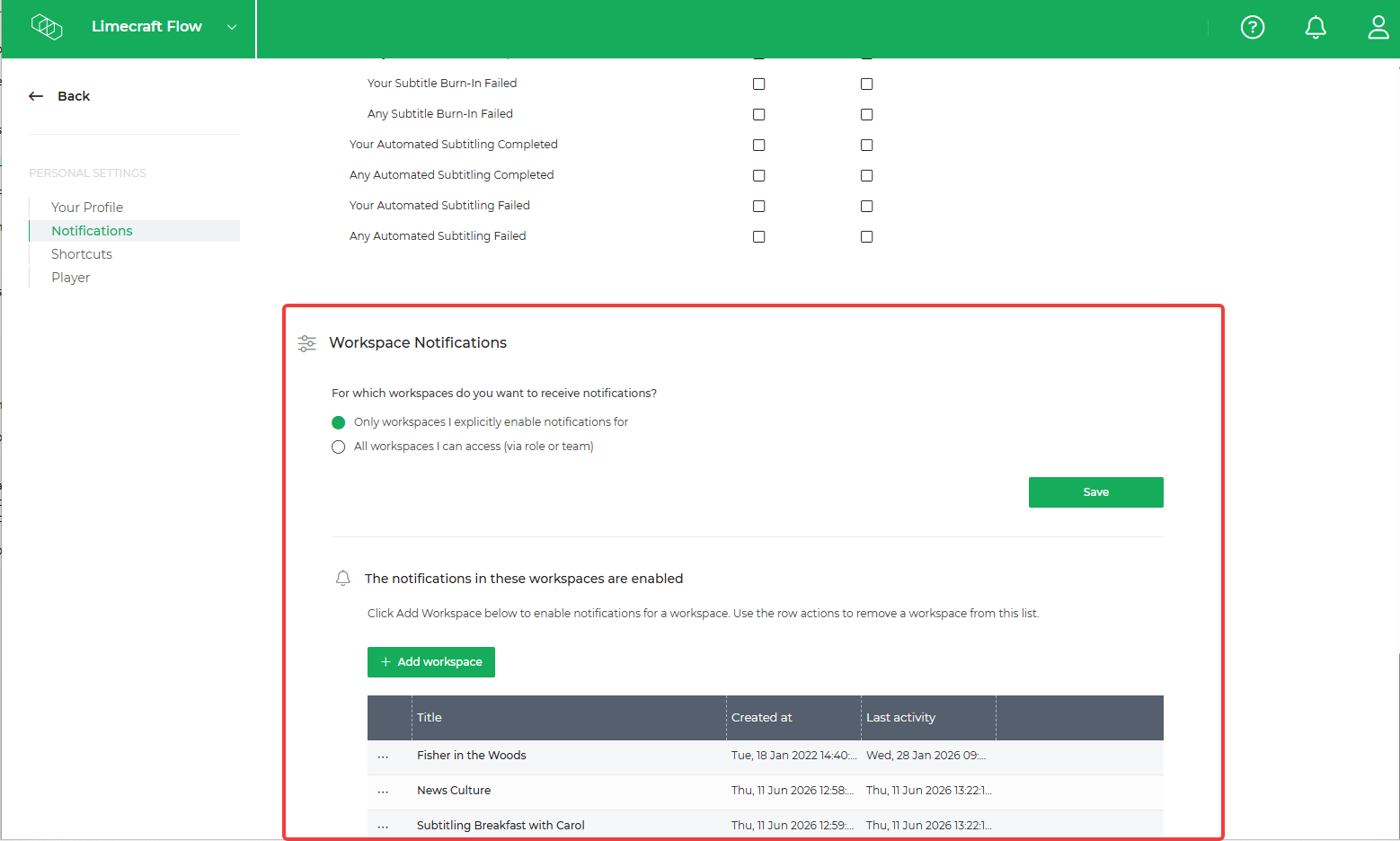
You can configure this in either of the following ways.
Receive Notifications From Most Workspaces
Enable notifications for all workspaces and then select the individual workspaces you want to mute.
This option is useful when you normally want to receive notifications but do not need updates from certain workspaces.
Receive Notifications From Selected Workspaces Only
Disable notifications for all workspaces and then select the individual workspaces from which you want to receive notifications.
This option is useful when you participate in many workspaces but only need to follow activity in a few of them.
Find and Add a Workspace
The workspace selector does not display a complete, scrollable list of all workspaces you participate in. To add a workspace to the list, enter its name in the search field and select it from the search results.
Depending on your general settings, the workspaces you add will either be:
- Muted, when notifications are enabled for all workspaces
- Enabled, when notifications are disabled for all workspaces
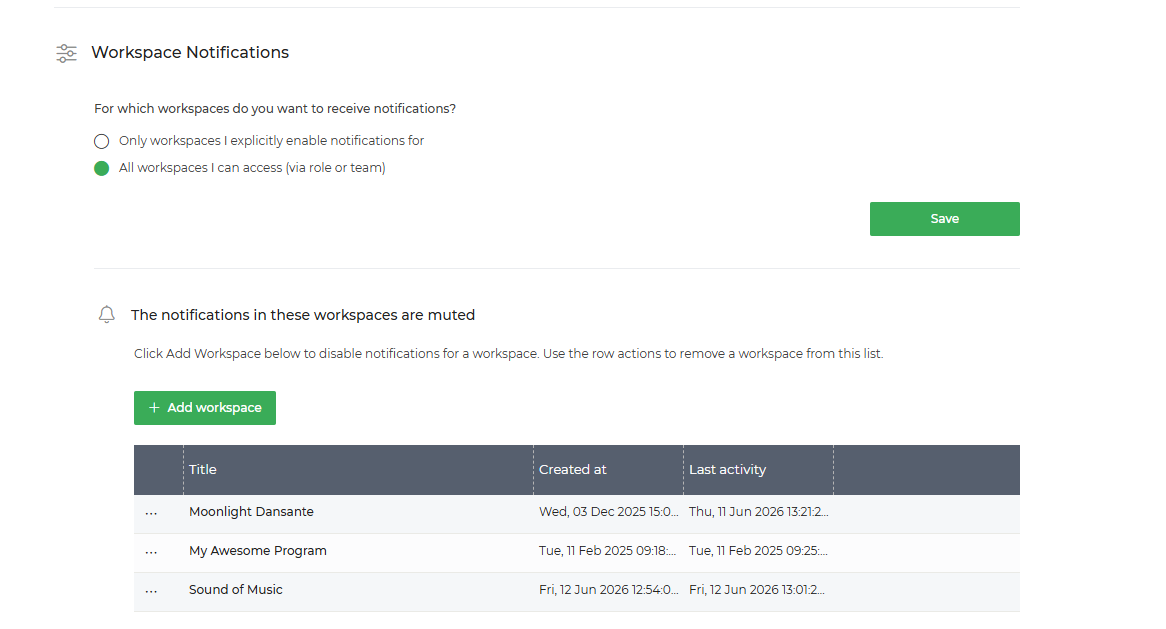
Your event preferences and workspace preferences work together. First, you select the events you want to follow. You then decide which workspaces can send you notifications about those events.
Change Notifications From an Individual Workspace
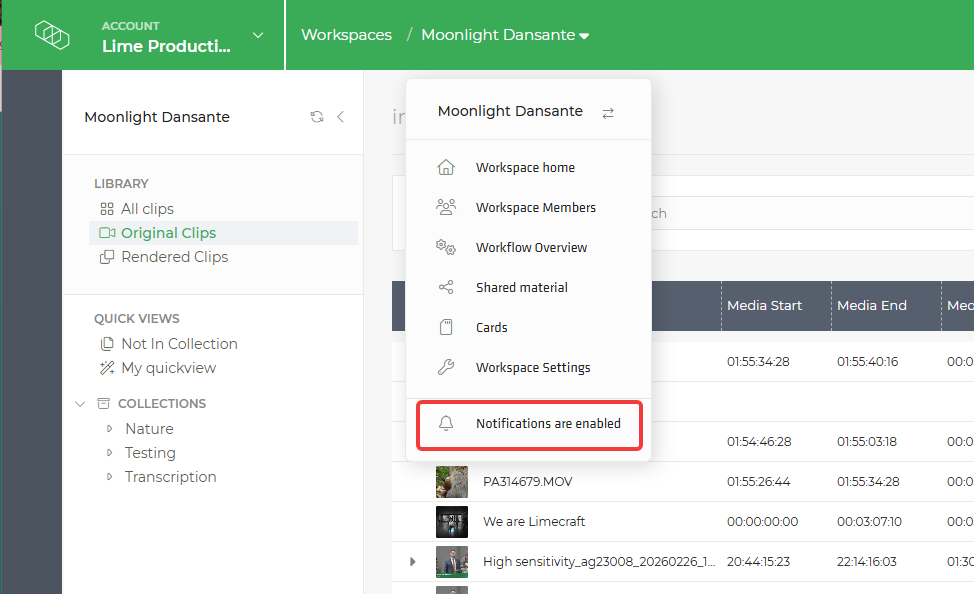
You can also change your notification status directly from the settings of an individual workspace.
Use the Notifications toggle to enable or disable notifications for the current workspace:
- If notifications are disabled, switch on the toggle to enable them.
- If notifications are enabled, switch off the toggle to disable them.
The change applies only to the current workspace and is also reflected under User Preferences > Notifications > Workspace Notifications.
Warning When Entering a Muted Workspace
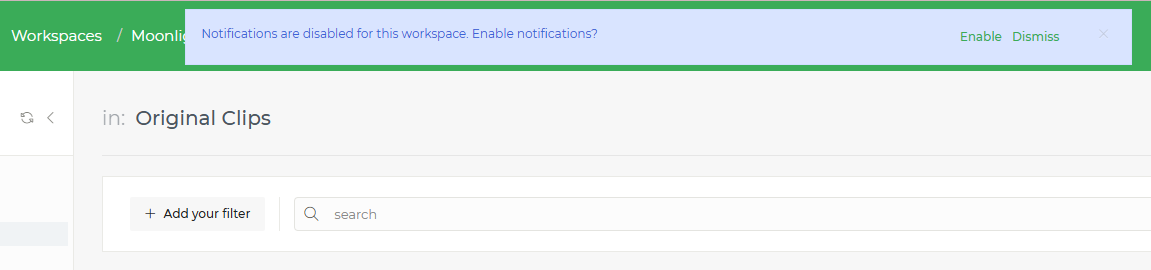
If notifications are disabled when you enter a workspace for the first time, Limecraft displays a warning.
You can choose to:
- Enable notifications for the workspace
- Ignore the warning and keep notifications disabled
The warning is displayed only once for that workspace.
If you choose to ignore it, you can still enable notifications later from the workspaces settings or under User Preferences > Notifications > Workspace Notifications.
Recommended Notification Settings
A practical starting point for most users is:
- Use in-app notifications for updates you want to review while working in Limecraft.
- Use email notifications when a periodic overview of recent activity is sufficient.
- Use mobile push notifications for events that require a more immediate response.
- Enable "Any" notifications only when you are responsible for monitoring an entire workspace or workflow.
- Mute inactive workspaces or workspaces that are not relevant for your current work.
Update your email, in-app, and workspace preferences at any time under User Preferences > Notifications. Mobile push notifications are managed through the Limecraft Mobile App.