Learn how Limecraft uses AAF exports and AAF Export Templates to automate the transition from production logging and collaboration to editorial work in Avid Media Composer.
TABLE OF CONTENTS
- What is AAF?
- Why use AAF Export from Limecraft?
- How the Limecraft-to-Avid workflow works
- How to export an AAF from Limecraft
- What are AAF Export Templates?
- What AAF Export Templates enable?
- Configuring AAF Export Templates
What is AAF?
AAF (Advanced Authoring Format) is an industry-standard format used to transfer edit-ready media references, metadata, markers, and editorial structure between production and post-production systems. In Limecraft, AAF export allows you to transfer organised media and production metadata directly into Avid Media Composer, reducing manual preparation work for assistance editors and editors.
Why use AAF Export from Limecraft?
AAF export from Limecraft accelerates the transition from production to post-production by preserving editorial structure, transferring production intelligence, and standardising project setup in Avid Media Composer. This reduces preparation time and allows editors to start working immediately.
Reduce assistant editing work
AAF export automates the organisation of media in Avid Media Composer based on predefined templates. Instead of manually preparing bins and structuring content, the exported AAF arrives already organised and ready for editorial use.
This includes:
- Pre-organised bins based on template rules
- Automatic clip naming conventions
- Metadata transfer from Limecraft
- Visual metadata representation using colours and markers
Preserve production intelligence
Limecraft AAF export ensures that editorial context captured during production is not lost when moving into Avid Media Composer.
The following production information is transferred into the Avid project:
- Logging information
- Comments and annotations
- Transcript markers
- Scene and take metadata
This allows editors to immediately understand the context behind each clip.
Standardise editorial workflows
Using AAF Export Templates across productions ensures consistency in how projects are delivered to Avid Media Composer. This helps teams scale editorial workflows across multiple productions and editors.
Standardisation includes:
- Consistent project structures
- Consistent colour coding rules
- Consistent sequence generation logic
Start editing faster
By combinging automated organisation, preserved production intelligence, and standardised templates, AAF export significantly reduces setup time in Avid Media Composer.
Editors can begin focusing on storytelling immediately, instead of preparing media and project structures.
How the Limecraft-to-Avid workflow works
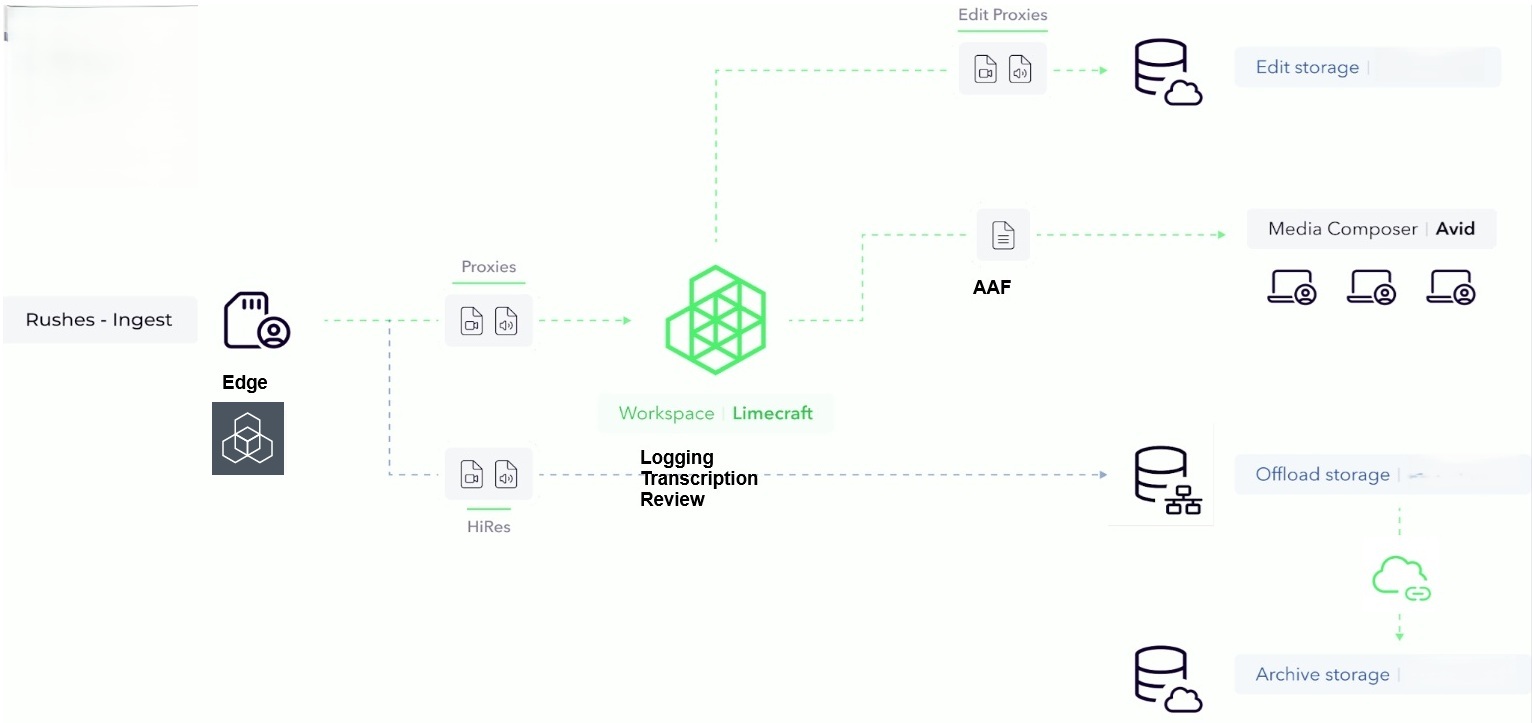
A typical Limecraft-to-Avid workflow takes you from production through cloud-based collaboration to a fully structured Avid Media Composer project.
Start at production, enrich your content in Limecraft, and finish with a ready-to-edit AAF import in Avid complete with organised bins, metadata, and editorial structure.
The workflow follows these four steps:
1. Ingest with Edge
2. Enrich content in Limecraft Workspace
3. Export using an AAF template
4. Import into Avid Media Composer
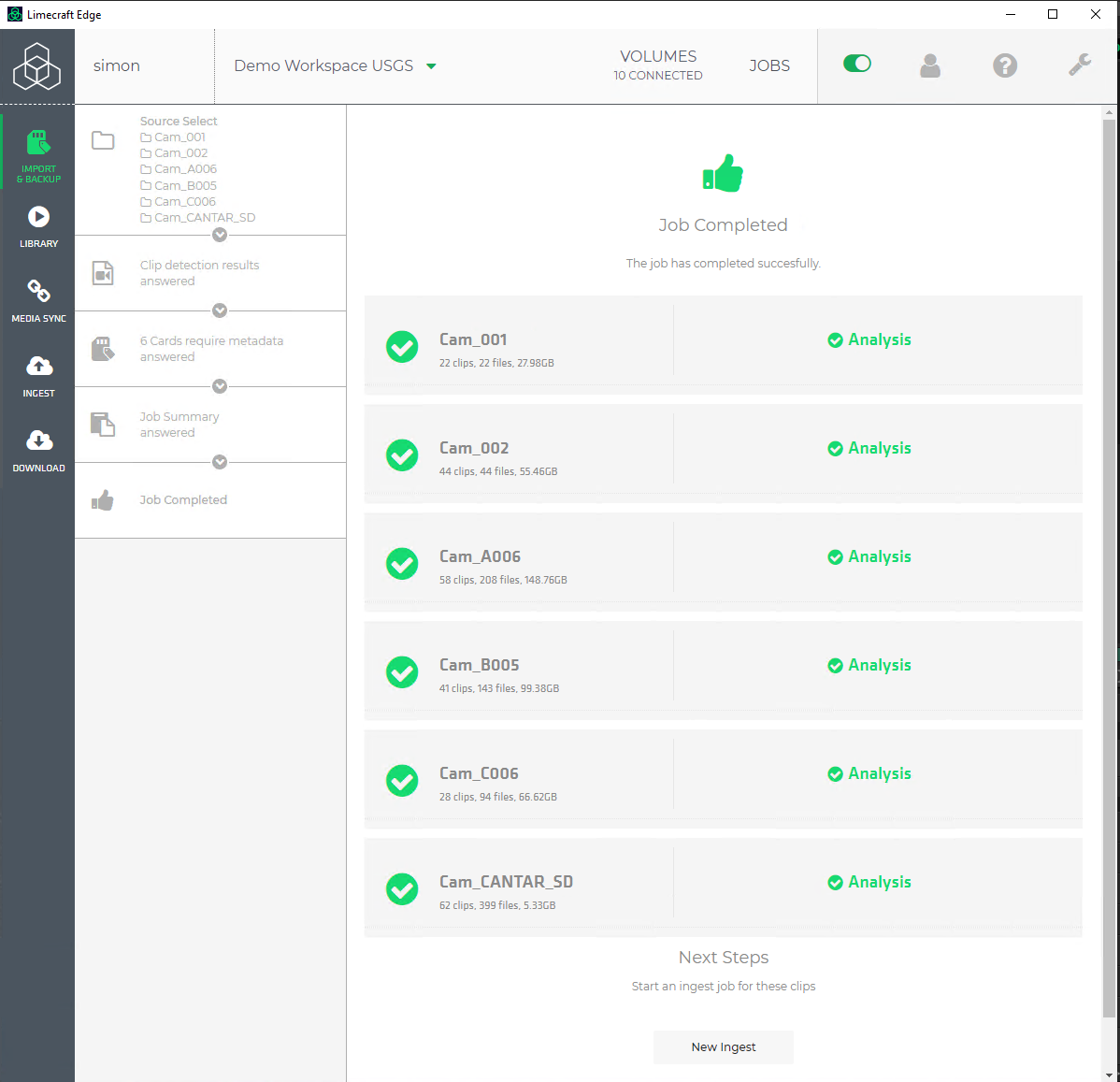
1. Ingest with Edge
Start your workflow in Limecraft Edge to ensure your media is properly tracked and ready for downstream editorial use.
At this stage, Edge prepares your content for a smooth round-trip back into Avid.
With Edge, you:
- Track the exact location of original camera files and proxies
- Capture technical and production metadata at ingest
- Add custom logging metadata per production needs
- Automatically group media using timecode (including sync for multi-cam shoots)
- Organise audio and video into structured groups and clips
This ensures that when you reach Avid later, your media can be correctly relinked to high-resolution sources.
2. Enrich and collaborate in Limecraft Workspace
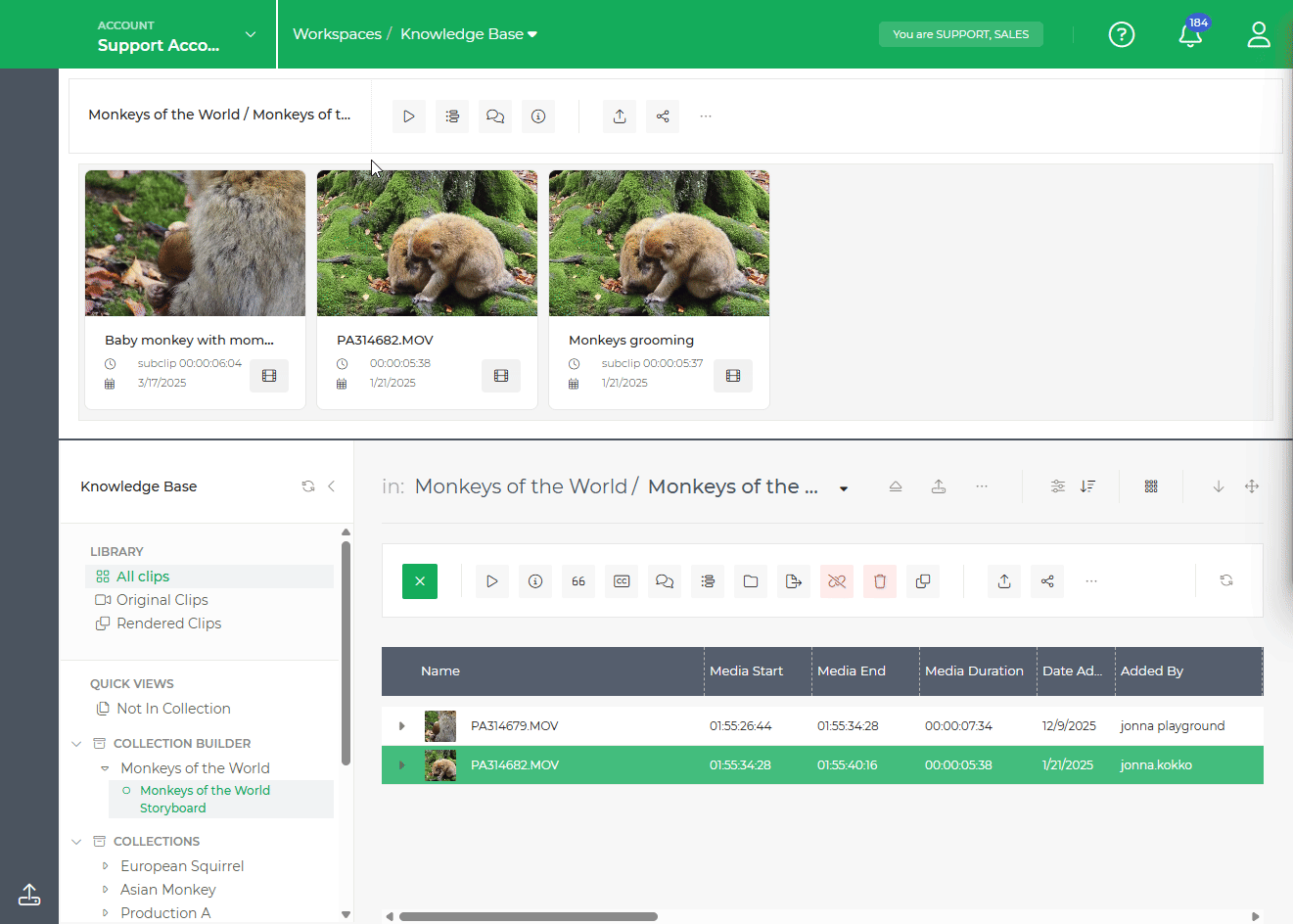
Once your media is ingested, you work in Limecraft Workspace to prepare content for editorial.
This is where you turn raw media into structured, searchable, and review-ready material.
In Workspace, you can
- Automatically transcribe audio into searchable text
- Add logging, comments, and editorial notes
- Sync production metadata from tools such as Lockit Network (requires integration)
- Build precuts using collections
- Create paper edits by selecting transcript texts or logged segments
At this stage, you are not just reviewing content. You are shaping the editorial structure that will be carried into Avid.
Read about our customer case with Warner Bros Belgium Creating Efficiency through Platform Integration
3. Export to Avid using AAF templates
When your content is ready, you export it to Avid Media Composer using an AAF Export Template.
This step translates your production intelligence into a structured Avid project.
Instead of exporting only media, you export an editorial-ready structure.
With AAF Export Templates, you can:
- Deliver clips into pre-organised Avid bins
- Apply consistent naming conventions automatically
- Transfer metadata from Limecraft into Avid
- Visually structure content using colour coding rules
- Export markers such as logs, comments, and transcript highlights
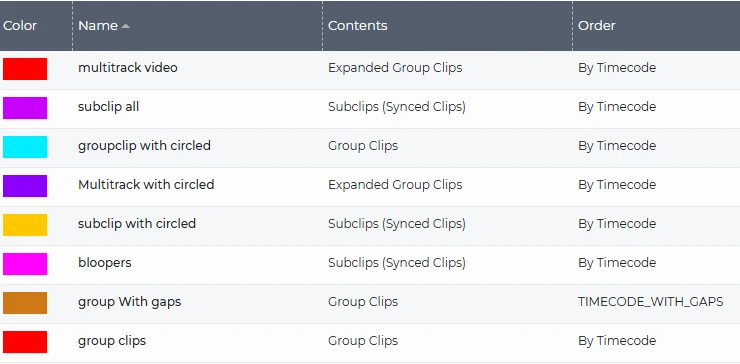
- Generate sequences automatically based on template rules
- Recreate precut collections directly in the Avid timeline
This ensures that what you built in Limecraft is preserved and immediately usable in Avid.
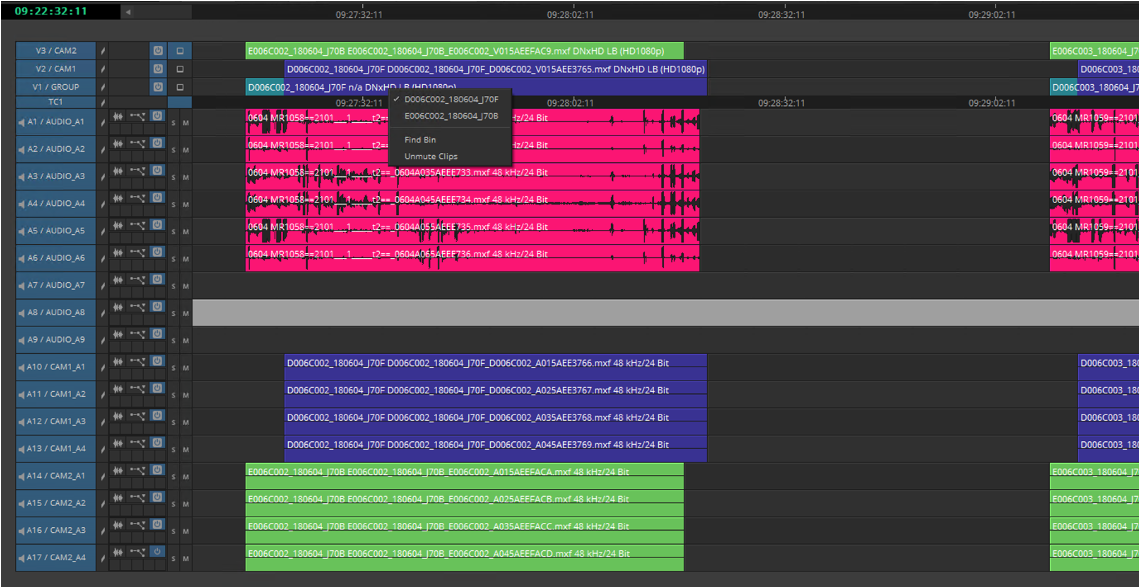
AAF Export Template for sequences:
4. Import into Avid Media Composer
Finally, you import the AAF file into Avid Media Composer.
Your project opens with:
- Structured bins
- Colour-coded clips based on metadata
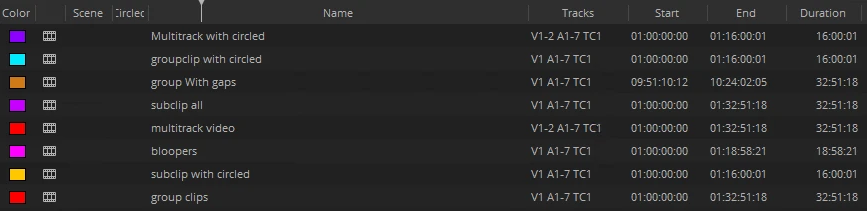
- Pre-built sequences (if configured)
- Editorial context carried over from Limecraft
At this point, you can start editing immediately without manual preparation.
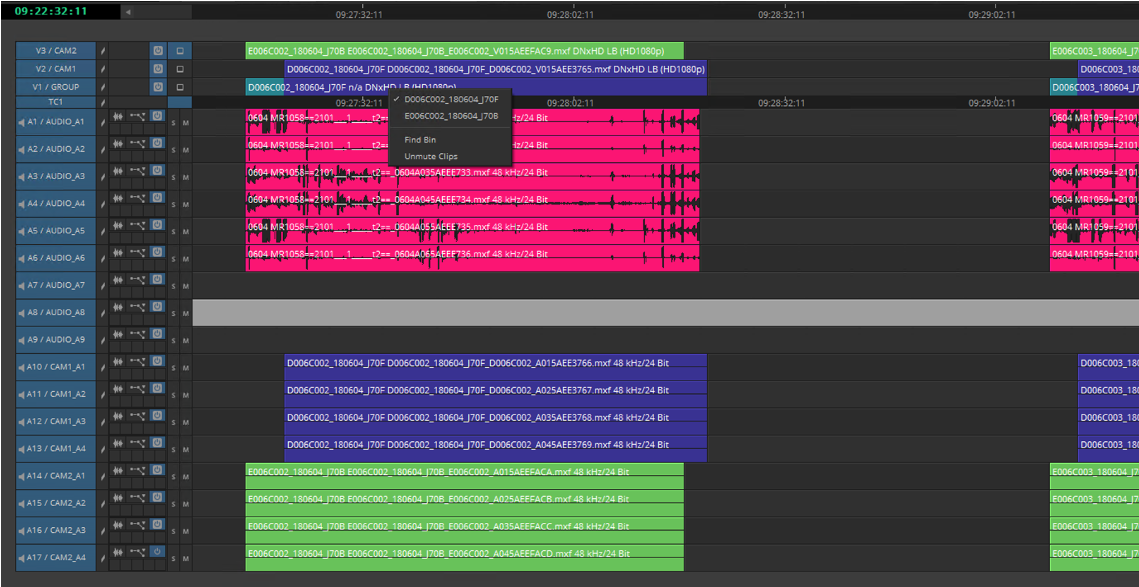
Above sequences in Avid Media Composer
How to export an AAF from Limecraft
Once your media has been ingested, enriched with metadata, and organised into collections or precuts, you can export it to Avid Media Composer using an AAF Export Template.
To export an AAF:
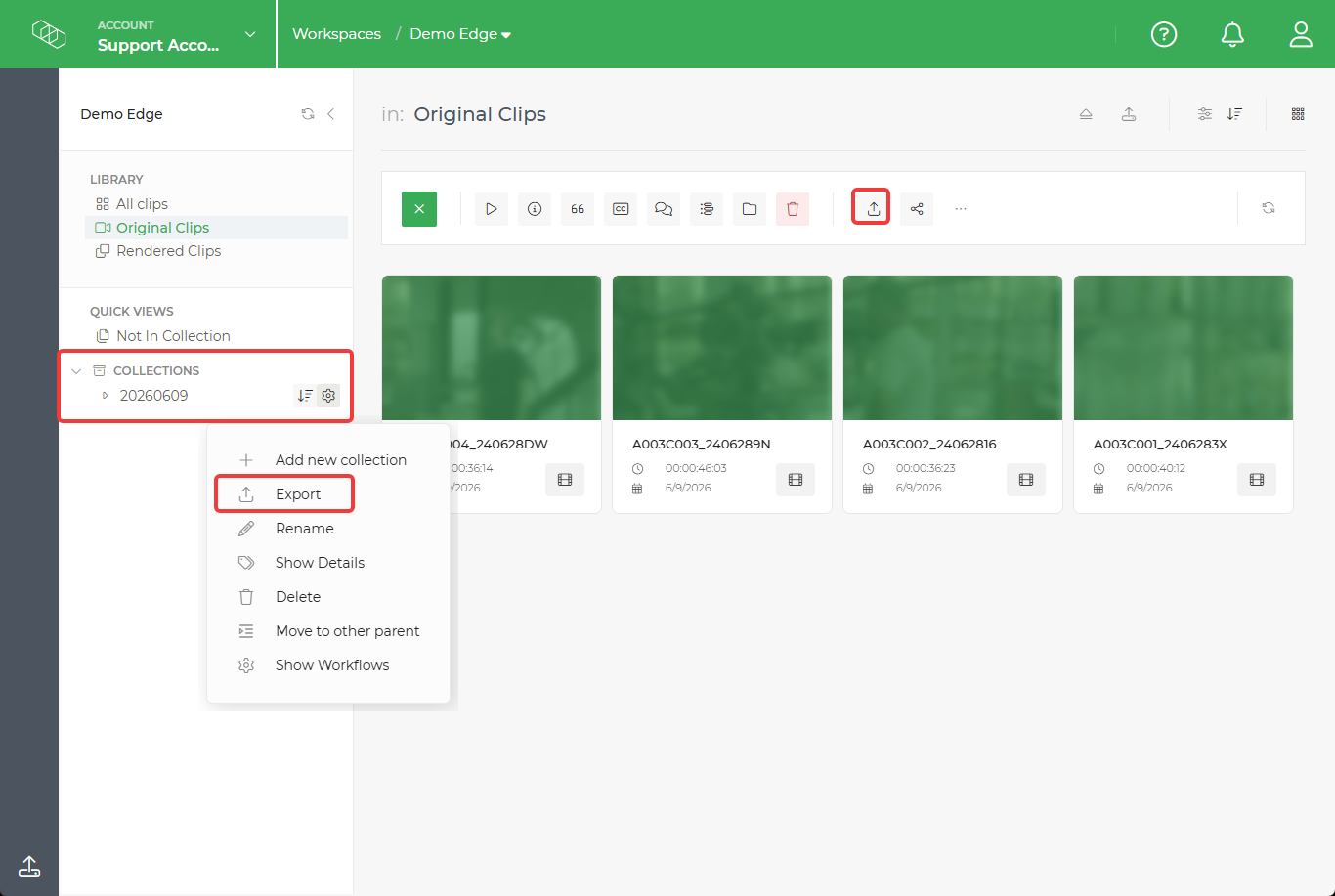
- Select the clips or collection you want to export
- Click Export rom the top toolbar (for clips selectionsor from the collection menu
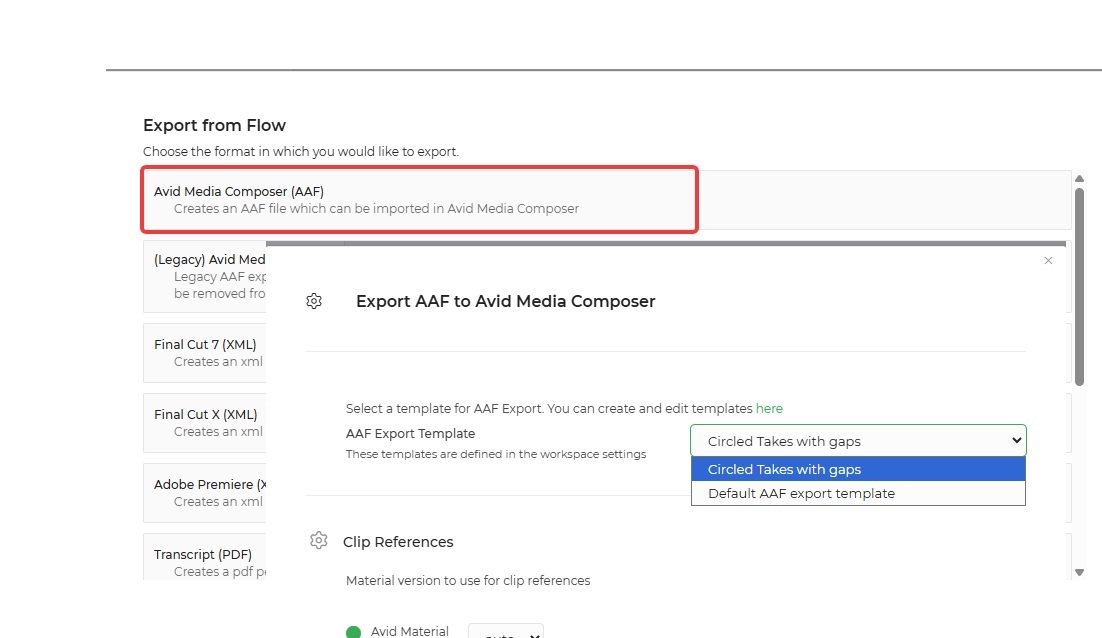
- Choose Avid Media Composer (AAF) as the export format
- Select the appropriate AAF Export Template
- Start the export and download the generated AAF file
Select what to export and click Export
Select your AAF Export Template
Import the AAF file into an Avid Media Composer bin. Avid will recreate the structure defined by the export template, including clip organisation, metadata, markers, colour coding, and any configured sequences.
By using AAF Export Templates, you can ensure that every production is delivered to editorial in a consistent and predictable way, allowing editors to start working immediately instead of manually preparing media.
Looking for detailed export configuration?
AAF Export Templates are configured by Workspace administrators. See Configuring AAF Export Templates for information on metadata mapping, marker export, colour coding, sequence generation, and advanced track definitions.
What are AAF Export Templates?
AAF Export Templates automate the transition from Limecraft to Avid Media Composer.
A template defines how clips, metadata, markers, bins, and sequences are organised in the exported AAF. Instead of manually preparing material for editorial, you can apply a predefined template that automatically recreates your production's editorial structure in Avid.
By standardising these settings across productions, AAF Export Templates ensure that every export arrives in Avid with a consistent structure. This reduces preparation work, preserves production intelligence, and allows editors to start working immediately.
What AAF Export Templates enable?
An AAF Export Template can do much more than export media references. It defines how clips, metadata, markers, sequences, cameras, and audio tracks are organised when the AAF is imported into Avid Media Composer. This allows production administrators to standardise editorial workflows and automate project preparation across productions.
| Template Feature | What it Controls | Example Use Case |
|---|---|---|
| Clip Naming | Applies consistent naming conventions using production metadata such as episode, scene, shot, and take. | Automatically name clips as E01_SC12_SH03_T02 instead of camera filenames. |
| Clip References | Defines whether the AAF links to original camera files or Avid-ready media. | Deliver proxies for offline editing or link directly to high-resolution media. |
| Bin Organisation | Controls how clips are organised when imported into Avid Media Composer. | Group clips by shooting day, scene, or collection. |
| Clip Colour Coding | Assigns colours to clips based on metadata values. | Automatically colour "Circled Takes" green and "Bloopers" red. |
| Markers & Notes | Exports selected markers, logging information, comments, and transcript markers. | Bring logger notes and transcript highlights directly into the edit. |
| Metadata Mapping | Transfers production metadata from Limecraft into Avid. | Preserve scene, take, camera, script, or custom production metadata. |
| Sequence Generation | Automatically creates sequences based on collections, metadata, or timecode. | Generate a timeline containing only selected takes or create a sequence from a precut. |
| Timecode-Based Sequencing | Builds timelines using recording timecode across multiple devices. | Create a time-of-day sequence for reality, documentary, or studio productions. |
| Multicam Grouping | Automatically creates and configures Avid Group Clips. | Group multiple cameras into a multicam setup ready for editing. |
| Advanced Track Mapping | Maps cameras and audio devices to dedicated tracks in the exported sequence. | Always place Camera A on V1, Camera B on V2, and boom audio on A1-A2. |
| Audio Mapping | Controls how audio channels and tracks are organised. | Preserve original track numbering or create sequential audio layouts. |
| Track Labels & Structure | Defines track names, labels, and behaviour for empty tracks. | Create consistent timelines for editors, sound teams, and finishing workflows. |
Configuring AAF Export Templates
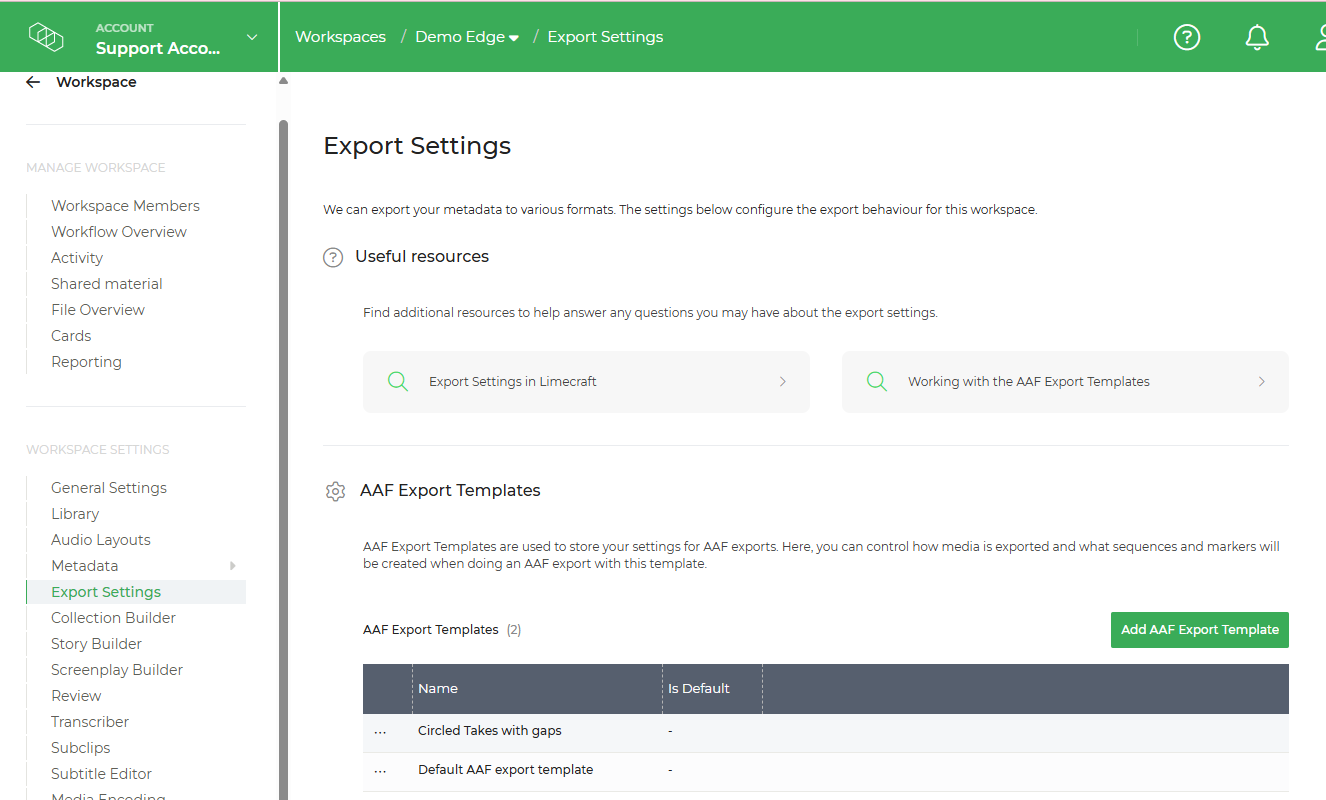
AAF Export Templates are managed in Limecraft Workspace Settings and are available to Workspace Administrators.
To access the configuration area, go to:
Workspace Settings > Export Settings > AAF Export Templates
From here, administrators can create and manage templates that define how media, metadata, markers, and sequences are structured when exported to Avid Media Composer.
For step-by-step instructions, see the How to Configure AAF Export Templates guide.
Advanced sequence and audio/video routing options are covered in Advanced Track Definitions, which explains how to build multi-track Avid sequences using template rules.