
By configuring multiple templates for different workflows, you make them available as presets when exporting selections from the workspace library. These templates allow you to define specific colors for clips, markers, and sequences based on metadata identifiers. Using consistent definitions across projects ensures a standardized and efficient editorial process.
Template Options Explained
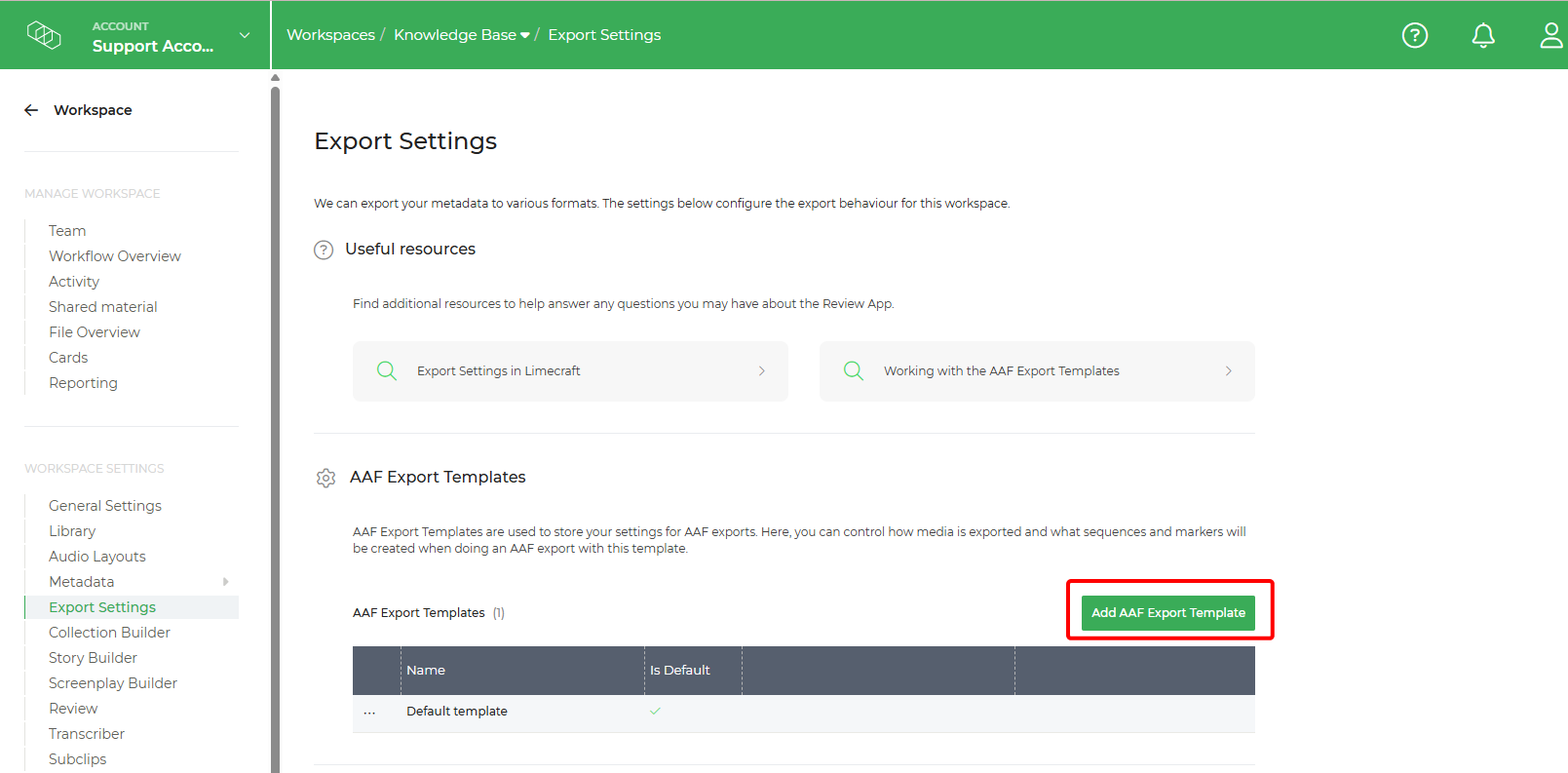
To start creating your custom AAF Export Template, navigate to the Workspace Settings > Export Settings > AAF Export Templates.
NOTE: These settings are accessible for admin users only.
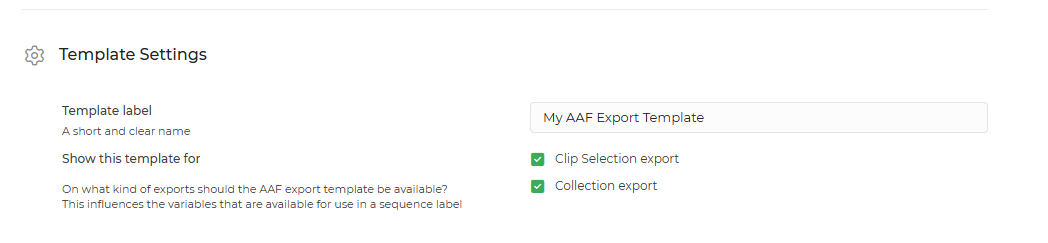
1. Template Settings
Provide a clear name for your template and determine which selection types will trigger this export option: Clip Selection, Parent Collection, Subcollection, or all of the above.
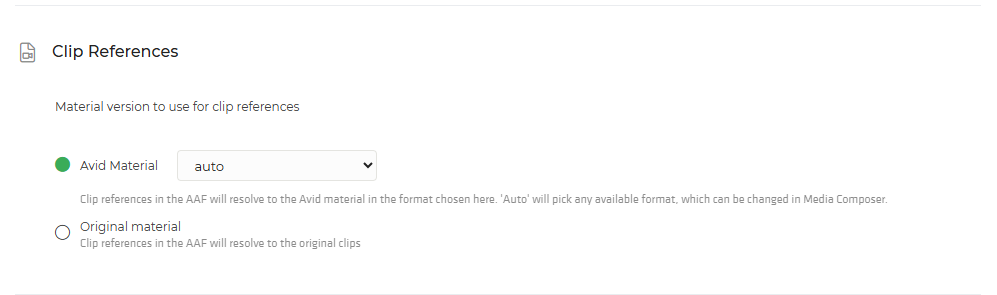
2. Clip References
Choose which material version should be used for clip references. You can toggle between Avid Material or the Original Material.
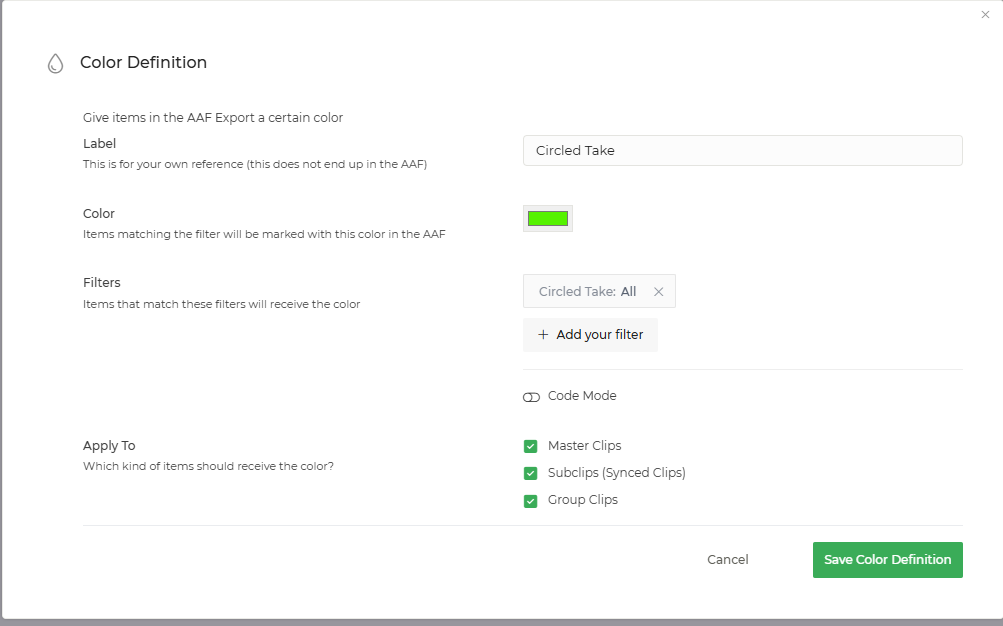
3. Clip Colours
Assign specific colors to different types of clips to make them visually distinct in Avid Media Composer. For example, you can automatically set Green for "Circled Takes" and Red for "Bloopers" based on your metadata. Determine which kind of items should receive this colour: Master Clips, Subclips, Group Clips or all of the above.
4. Marker Selection
Define which markers to include in your export (e.g., transcription markers, logger notes, or review comments). Assigning colours to these markers makes them easy to identify and filter during the editorial process.
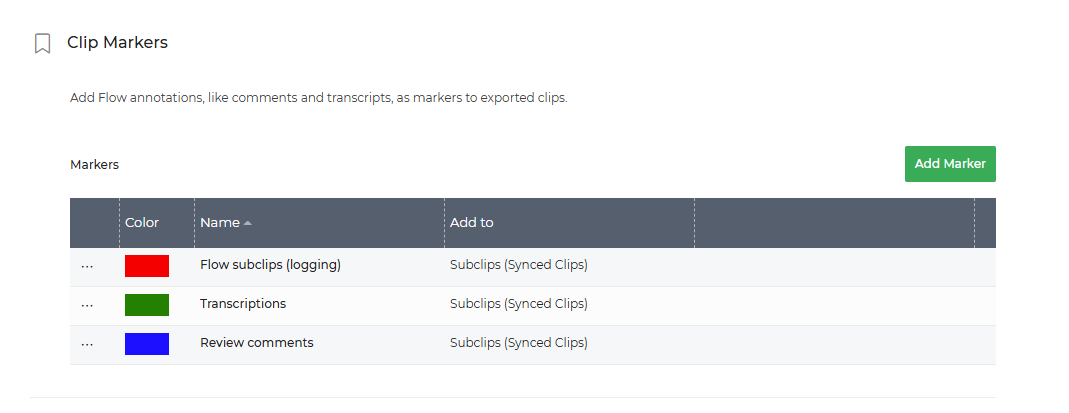
5. Sequence Definition
Automatically create sequences and define which type of clips are included and in which order: same as collection, by timecode or timecode with gaps. You can also auto-generate sequences based on metadata—for example, automatically placing all "Circled Takes" from a selection into a timeline.
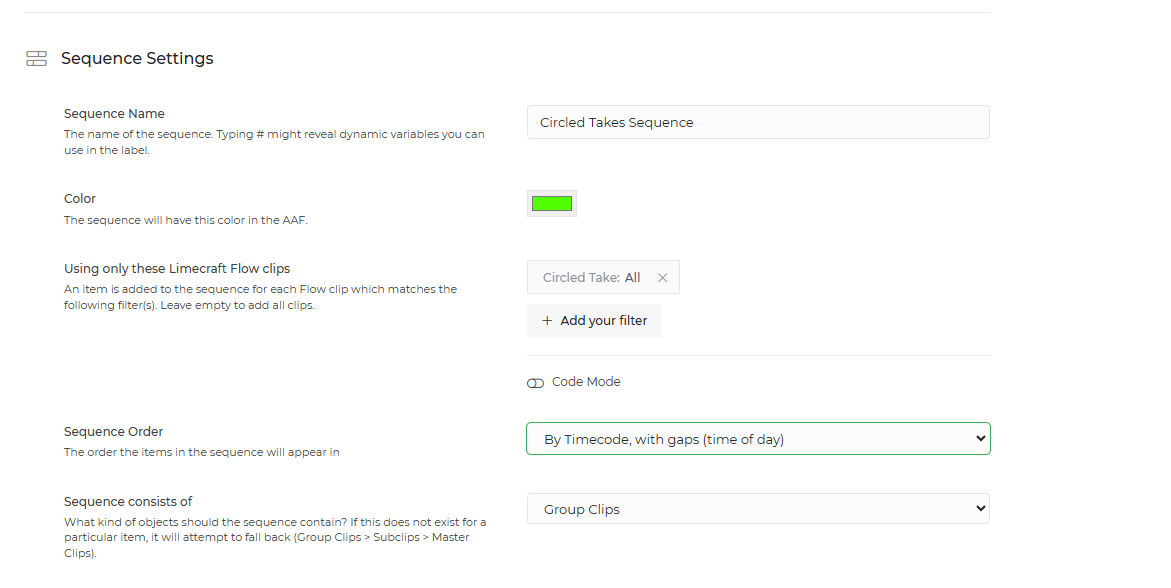
6. Advanced Options
The advanced settings offer granular control over the export:
Subclips: Automatically create Avid subclips from your Limecraft subclips.
Naming Conventions: Add metadata labels (Episode, Scene, Shot, or Take) as a prefix to the clip name.
Audio Mapping: Choose between using the original audio track numbers or sequential numbering.