
Limecraft is an online collaborative platform for video production. It includes tools for accurate audio transcription, automatically converting audio and video into accurate, timecoded transcripts. Unlike generic transcription tools, Limecraft is designed for media workflows such as subtitle preparation, sync pulls and editing, and integrates seamlessly with professional tools like Avid and Adobe.
One of the transcription options in Limecraft is the ability to fine-tune the sensitivity of Speaker Changes, which lets you control how readily the system detects speaker changes and distinguishes between different speakers in a transcript. This article explains what speaker sensitivity is, why it matters, and how to use it effectively.
TABLE OF CONTENTS
- What is Speaker Change Sensitivity in Transcription?
- Why is it Important to Adjust Speaker Sensitivity?
- How to Adjust Speaker Sensitivity
- What is the Expected Result of Adjusting Speaker Change Sensitivity?
Limecraft automatically transcribes audio and video into accurate, timecoded text for professional media workflows. To make transcripts more useful from the start, Limecraft allows you adjust Speaker Change Sensitivity during transcription. This setting controls how readily the system detects speaker changes and distinguishes between different speakers, improving the readability of interviews for documentaries, reality formats and other multi-speaker content.
What is Speaker Change Sensitivity in Transcription?
Speaker sensitivity is a transcript quality control that determines how readily Limecraft identifies distinct speakers in the transcript result. In other words, it affects diarisation: the way the system decides where one speaker stops and another speaker starts. Using Limecraft, the available levels are Low, Medium and High.
This setting is useful because not every recording behaves the same way. A one-to-one interview, a roundtable discussion, a documentary rushes interview and a reality TV scene all have different speaking patterns. By adjusting speaker sensitivity, you can tune the transcription behaviour to better match the nature of the material. This makes the transcript easier to review and more useful in downstream production workflows.
As a simple rule of thumb we advise using the following settings and approach:
- set it to High when there are many speakers, or
- Low when there are only a few.
- Set it lower when the sensitivity is too high (a quote from a single speaker is split in different speakers);
- set it higher with sensitivity is too low (different speakers are not identified as such.
Why is it Important to Adjust Speaker Sensitivity?
Speaker changes are not just a cosmetic detail. In professional production workflows, the way a transcript is segmented by speaker has a direct impact on readability, logging, review, paper edits and subtitle preparation. Limecraft’s transcription output is designed to be used far beyond simple note-taking: as timed metadata for search, editing preparation, subtitles and exports into professional editing environments.
Adjusting speaker sensitivity helps you get a transcript that better fits the material. Used well, this setting reduces cleanup work and improves the usefulness of the transcript from the start.
Why Considering Limecraft for Transcription
Many transcription tools are built for meetings, dictation or generic note-taking. Limecraft is different: its transcription workflow is optimised for audiovisual production. That means the transcript is not an isolated text file, but part of a wider media workflow.
In Limecraft, transcripts can be used to:
- make spoken content searchable
- support paper edits and sync pulls
- prepare subtitle files
- improve review and collaboration
- export material to professional editing environments and NLE workflows
Because Limecraft is embedded in professional post-production workflows, getting speaker segmentation right at the source has a cumulative effect downstream. A transcript with more appropriate speaker detection is easier to review, easier to repurpose and more reliable as production metadata.
How to Adjust Speaker Sensitivity
When you start a transcription job in Limecraft, you can adjust speaker sensitivity in the transcription settings. The release notes show this setting in the Advanced Options area of the transcription dialogue, under Speaker Detection.
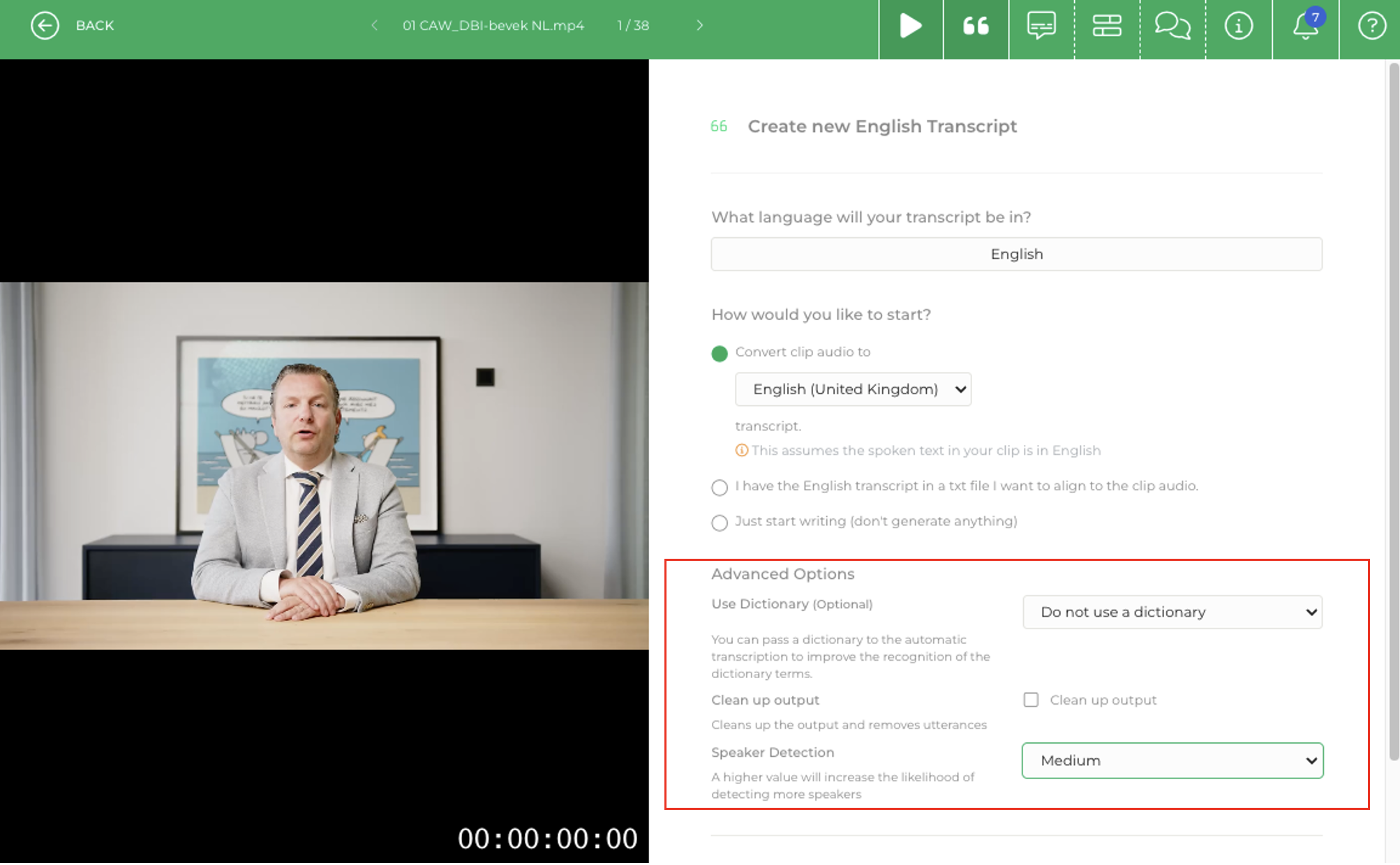
Open the transcription action for your clip, or select multiple clips to start a batch transcription. In the transcription dialogue, choose the option to generate an automatic transcript.
Open Advanced Options > Speaker Detection, choose Low, Medium or High > Start the transcription job.
Note: the defaults for transcript quality controls, including speaker sensitivity, can be configured at workspace level. See Workspace Settings > Transcription Settings.
What is the Expected Result of Adjusting Speaker Change Sensitivity?
With speaker sensitivity adjusted appropriately, the transcript will better reflect the actual speaker structure of your recording. The system will distinguish speakers more or less readily depending on the level you choose, helping you strike the right balance between under-detection and over-segmentation.
In practical terms:
- choosing a lower setting can help keep transcripts stable when only a few people are speaking
- choosing a higher setting can help capture more speaker changes in complex multi-speaker material
- choosing the right setting upfront reduces manual correction afterwards
For production teams working on interviews, unscripted formats, documentaries or other speaker-rich content, this can make transcripts more usable from the moment they are generated.