
Managing user access workspace by workspace becomes difficult as your organisation grows. Teams allow Account Administrators to group users, assign permissions and grant access to multiple workspaces from a single location. This article explains how Teams work, when to use them and how to configure them efficiently.
TABLE OF CONTENTS
- 1. What Problem Do Teams Solve?
- 2. What Is a Team in Limecraft?
- 3. Common Use Cases
- 4. Understanding Teams, and the Differences between Teams and Roles
- 5. How to Create and Manage a Team
- 6. Viewing Team Access
- 7. Best Practices
- ⚠️ Important Notice (Release 26.4)
1. What Problem Do Teams Solve?
As organisations grow, managing access permissions individually for every workspace may become too time-consuming and prone to errors.
Consider a broadcaster working with ten production companies across fifty active productions. Without Teams, administrators must repeatedly:
- Invite the same users to multiple workspaces
- Assign the same permissions over and over again
- Update access whenever a new workspace is created
- Remove access individually when projects end
This approach increases administrative effort and creates a higher risk of inconsistent permissions. Teams solve this problem by allowing Account Administrators to manage permissions centrally at the account level instead of configuring access workspace by workspace.
A Team can contain:
- A number of users
- A list of specific permissions
- Access to one or more workspaces
Once configured, every member of the Team automatically receives the permissions granted to that Team in every linked workspace.
2. What Is a Team in Limecraft?
A Team is an account-level access management mechanism that connects:
- Users
- Permissions
- Workspaces
into a single reusable configuration.
Instead of granting permissions one user at a time in every workspace, administrators can:
- Create a Team.
- Define what members of that Team can do.
- Select which workspaces the Team can access.
- Add users to the Team.
Any user added to the Team automatically receives access to all linked workspaces. Teams do not replace existing workspace roles. Both methods can be used together. Workspace-level access controls continue to function exactly as before.
3. Common Use Cases
3.1 Content Delivery | Broadcasters Inviting External Production Companies
A broadcaster may collaborate with a production company across dozens of Delivery Workspaces. Instead of inviting the same people into every workspace individually, the broadcaster can create a team such as:
Production Partner – Company X
and link that team to all relevant workspaces.
When a new production starts, access can be granted simply by linking the workspace to the Team.
3.2 Accessibility & Localisation | Inviting Freelance Subtitlers and Translators
Many organisations work with pools of external language professionals. A Team such as:
Freelance Subtitlers
can be configured with permissions to:
- Edit transcripts
- Create subtitles
- Review subtitle content
The Team can then be linked to all workspaces that require subtling. When a new freelancer joins, they only need to be added to the Team.
3.3 Production Departments
Larger organisations often set up dedicated teams or roles for:
- Production
- Archive
- QC
- Delivery
- Editorial
Each department can have its own Team with an appropriate set of permission. This ensures permissions remain consistent across all productions.
3.4 Central Management of Admin Permissions
Specific Teams can be configured to access admin permissions of current and future workspaces.
This is especially useful for:
- Account Administrators
- Workspace Administrators
- Archive Administration
- Delivery Administration
No manual access management is required when new workspaces are created.
4. Understanding Teams, and the Differences between Teams and Roles
Teams complement existing workspace roles users may have in workspaces. You can still invite users directly into a workspace and assign a role exactly as before.
The difference a specific role and team membership is the scope:
Workspace Role | Team |
Applies to one workspace | Can apply to many workspaces |
Managed in workspace settings | Managed at account level |
User-by-user management | Group-based management |
Ideal for exceptions | Ideal for recurring access patterns |
4.1 Users Can Belong to Multiple Teams
A user may belong to more than one Team.
For example:
- Freelance Subtitlers
- External Reviewers
The user receives permissions from both Teams.
4.2 Permissions Are Additive
Permissions are cumulative.
A user's effective permissions are the union of:
- Workspace roles
- Team permissions
- Permissions from multiple Teams
Nothing is removed when additional Teams are assigned. Access is combined.
4.3 Workspace Type
When creating a Team, a Workspace Type can be selected:
- All
- Production Workspace
- Delivery Workspace
This influences which permissions can be assigned and which workspaces can be linked to the Team.
4.4 Built-In Teams
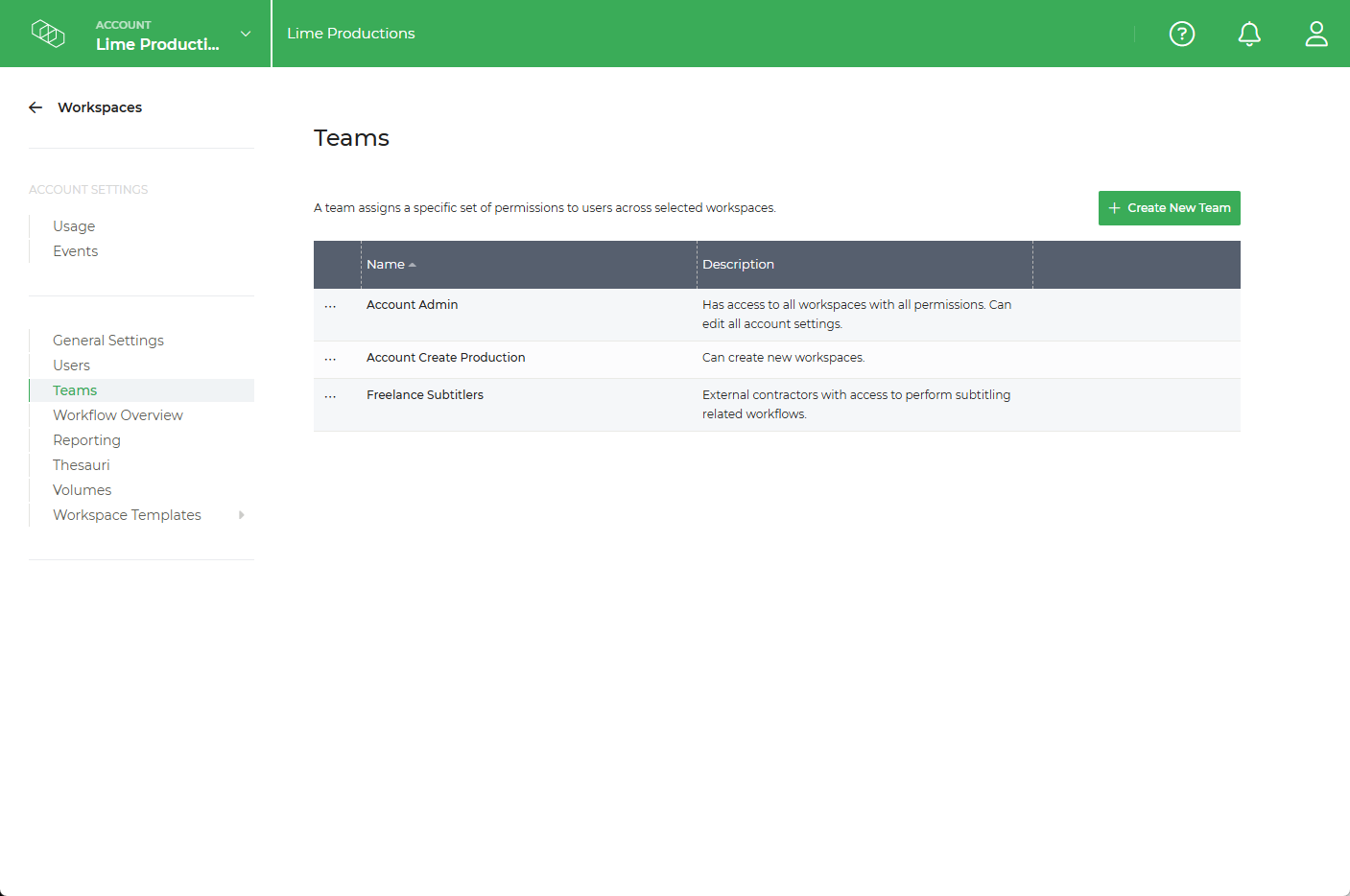
Every account includes two predefined Teams: 'Account Admin' and 'Create Production'.
'Account Admin' has access to
- Full account administration
- Access to all workspaces
- All permissions
⚠️ The Manage Account permission automatically grants all permissions and links all workspaces.
'Account Create Production' allows users to create new workspaces without granting full account administration rights.
These Teams replace the account-level permissions used in earlier versions of Limecraft.
5. How to Create and Manage a Team
Follow these steps to create and manage teams within your account.
NOTE: You must have Account Admin permissions to manage teams.
5.1. Open Teams
Navigate to Account Settings > Teams.
5.2. Create or Manage a Team
Create a new team for a specific group of members, such as freelancers, production partners or internal departments. To manage an existing team, click the three-dot menu next to the team name.
5.3. Configure Team Permissions
Assign the appropriate permissions for the members of the team.
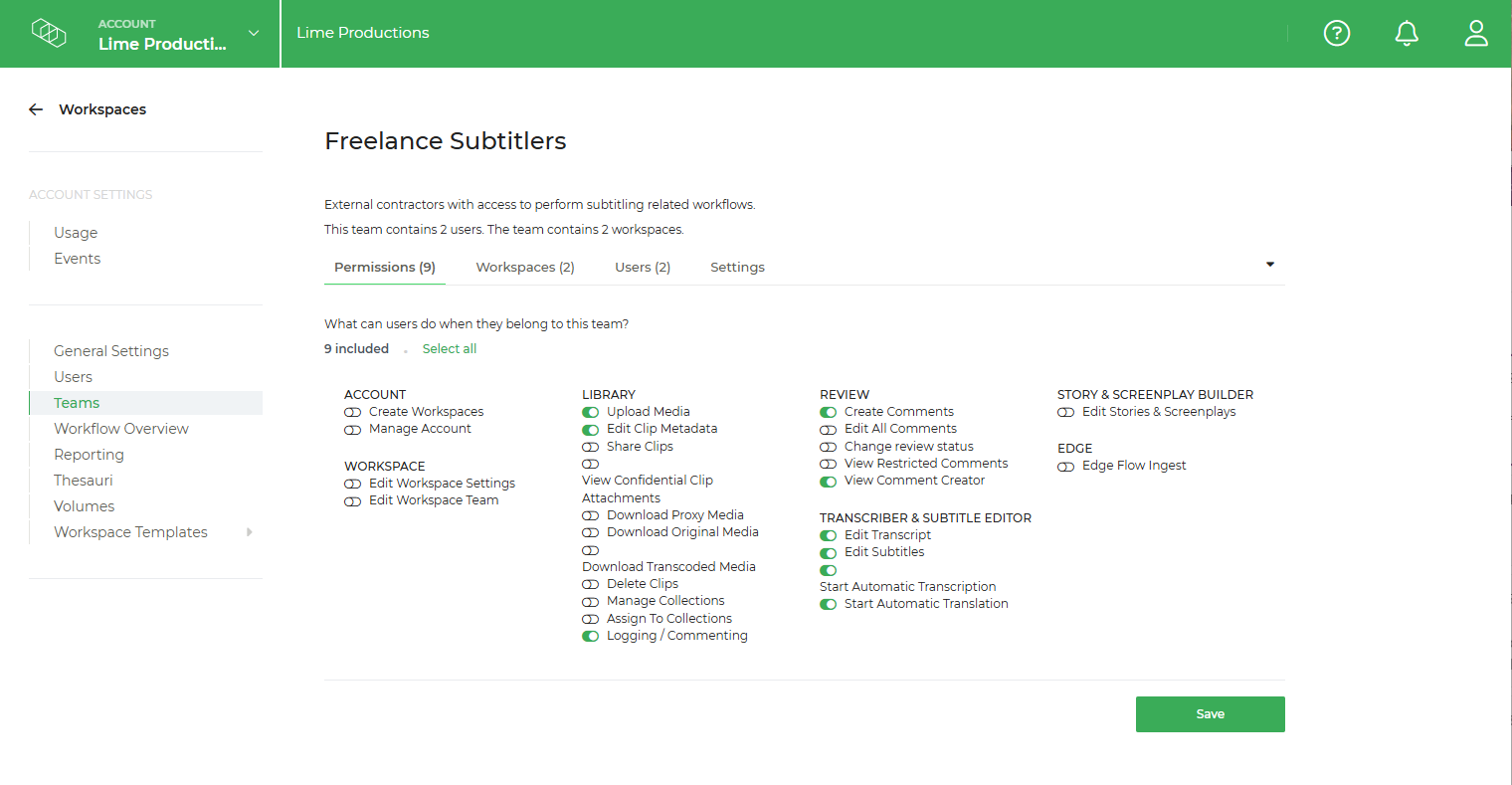
These permissions are applied consistently to all team members, making it easier to manage access at scale. Permissions may include:
- Workspace administration
- Media management
- Logging
- Reviewing
- Subtitle editing
- Transcription
- Delivery functions
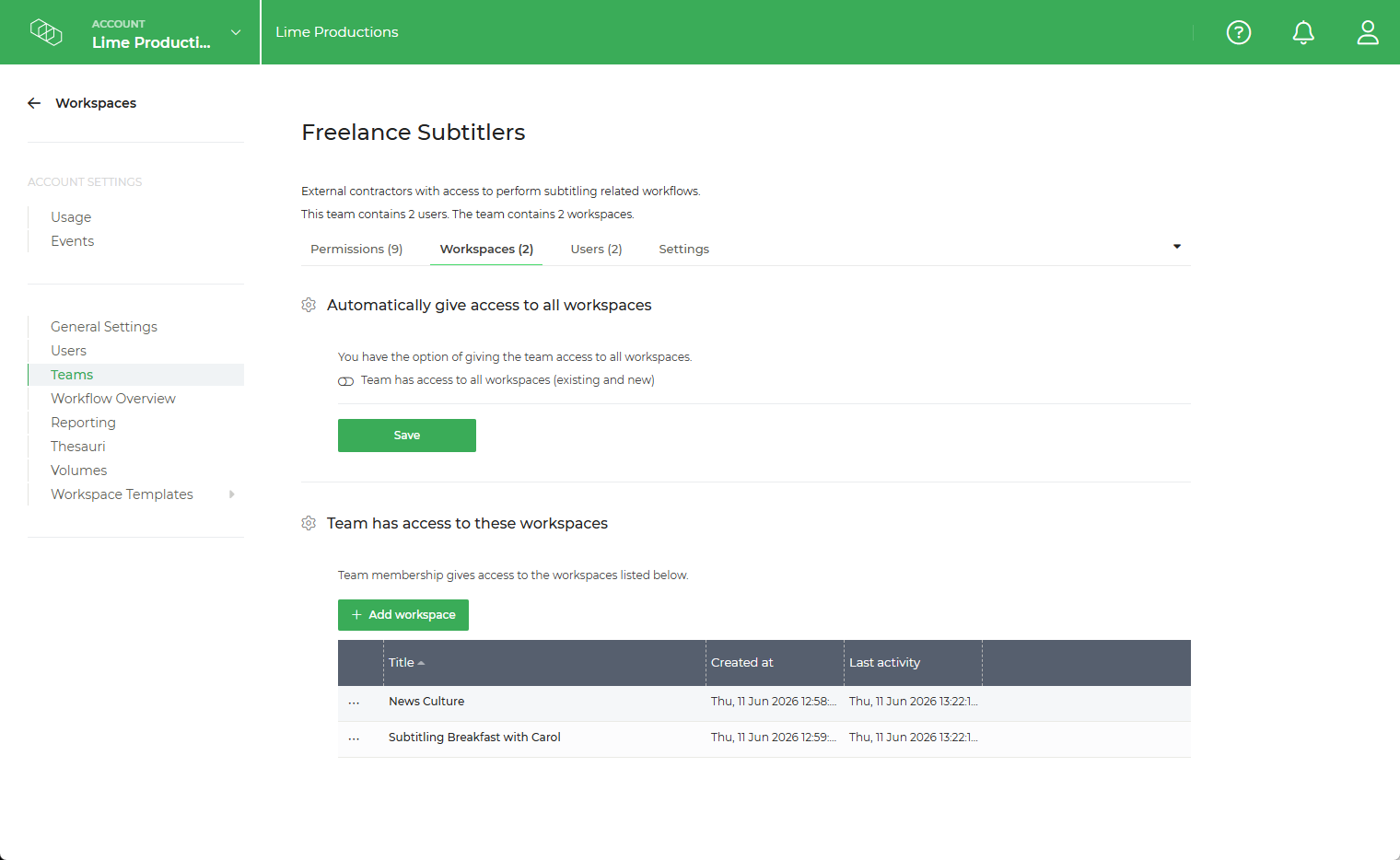
5.4. Link Workspaces
Choose whether the Team should:
- Access all current and future workspaces
- Access selected workspaces only
Using All Workspaces is recommended when Team members require ongoing access to newly created productions.
5.5. Add Members
Invite members by entering their email address.
- Existing account members are added directly to the team and gain access to the linked workspaces.
- New members receive an email invitation to join the account and will automatically receive the team's assigned permissions and workspace access once they accept.
6. Viewing Team Access
Teams are visible in two locations:
Account Settings → Users
Displays:
- Team membership
- Account-level permissions
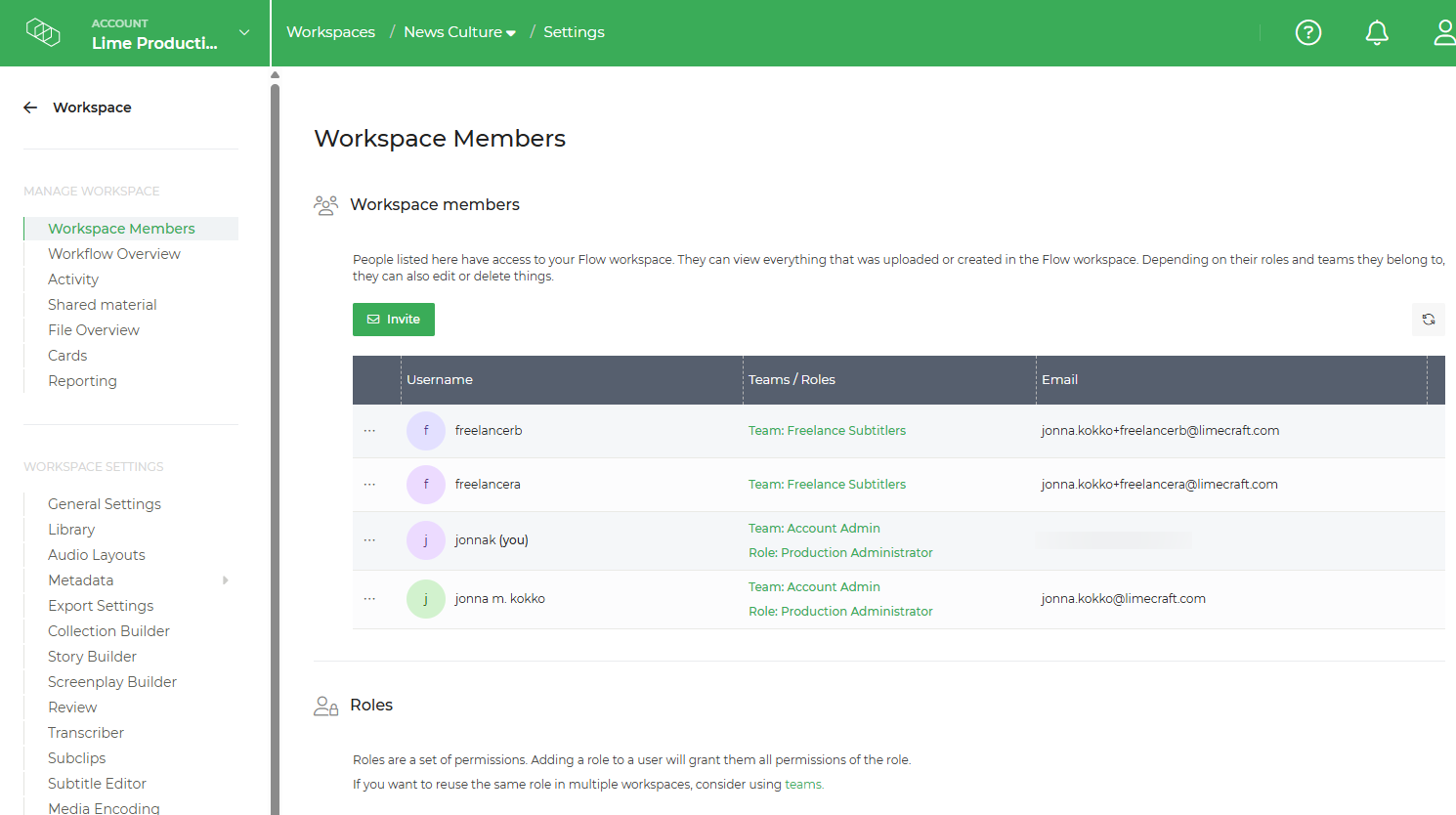
Workspace Settings → Workspace Members
Displays:
- Team-based access
- Direct workspace roles
- Pending Team invitations
- Pending workspace invitations
Workspace Members clearly indicates whether access is granted through a Team or through a workspace role.
Both the Users Overview in Account Settings and the Workspace Members section both indicate whether a member belongs to a team. They also display the member's workspace role and permissions, making it easy to understand how access has been assigned and managed.
7. Best Practices
- Use Teams for recurring permission patterns.
- Use workspace roles only for exceptional cases.
- Create Teams around functions rather than individuals.
- Use descriptive Team names.
- Use "All Workspaces" sparingly and only when appropriate.
- Review Team membership periodically.
- Prefer Team-based access for external partners who participate in multiple productions.
⚠️ Important Notice (Release 26.4)
We are working on a permanent fix for a known issue regarding team notifications. Currently, adding members via team does not automatically enable notifications (if activated by the user). You must use these workarounds to enable them.
- For Account Admins: Go to Workspace Settings > Workspace Member listing and manually join the workspace.
- For Other Members: In addition to the team invite, they must also be manually added through the Workspace Member invitation to enable notifications.