
Limecraft Workflows allow workspace administrators to automate recurring tasks, helping video teams save time and work more efficiently. This article explains how to configure workflows to run automatically on a schedule, manually through a workspace action, or both.
Currently, the Workflow Library offers the Purge material template. Use this template to remove specific media versions, such as original high-resolution media to free up space in the storage. Additional workflow templates will become available in the future.
Note: The Workflow Library must be enabled by Limecraft Support. If you would like to try it, please contact our support team.
Before you begin
- You must be a workspace administrator to configure workflows.
- Workflow are currently available at workspace level only, rather than account level.
- The Workflow Library must be enabled for your workspace.
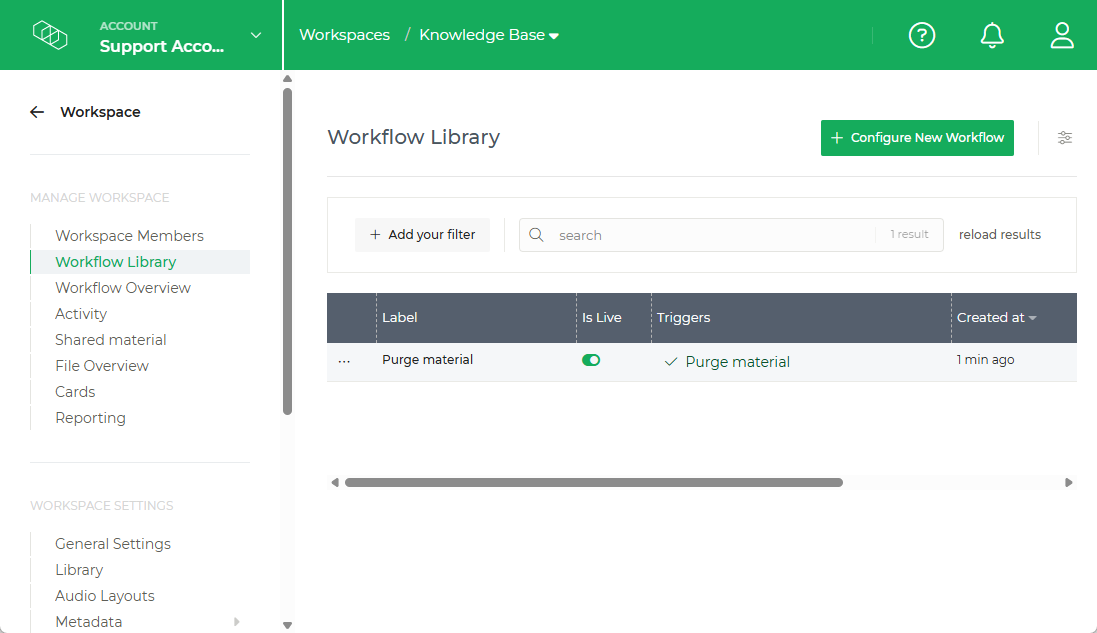
How to configure a Limecraft Workflow
1. Select a workflow template
Open your Workspace settings and go to Workflow Library. Click Configure New Workflow, then select the appropriate workflow template. Currently, only the Purge material template is available, allowing you to configure automatic purge workflows.
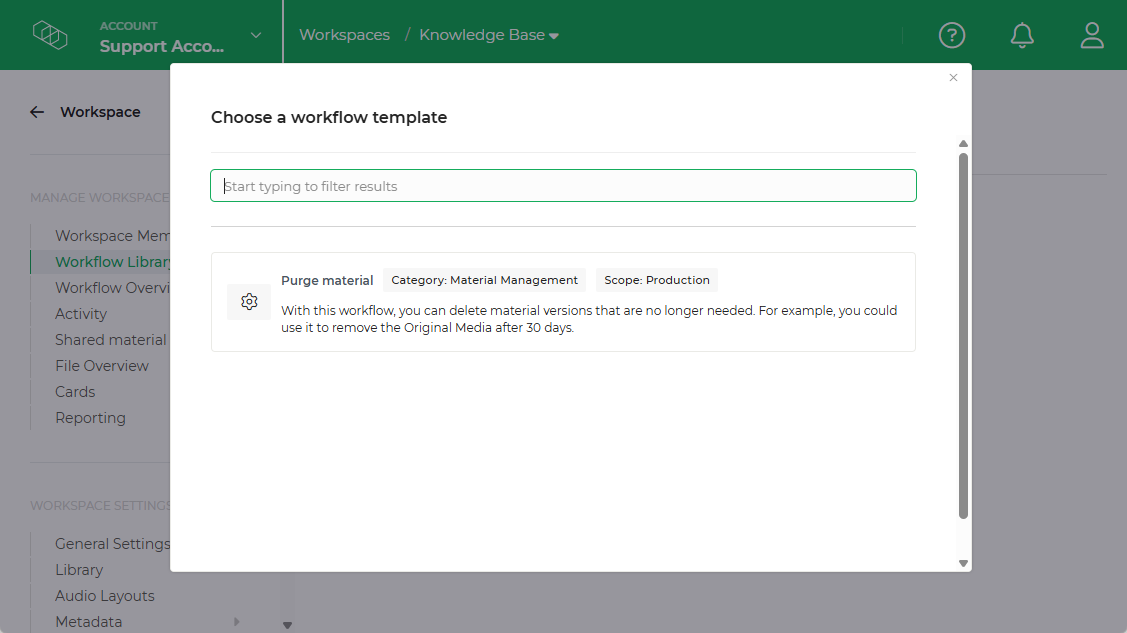
2. Configure the triggers
Triggers determine how the workflow starts. You can configure a scheduled trigger, a manual workspace action, or both.
Schedule
Use the Schedule trigger to run the workflow automatically at a regular interval.
Select the frequency, interval and start date.
For example, to run the workflow weekly, set Every to 1 and Interval to Week.
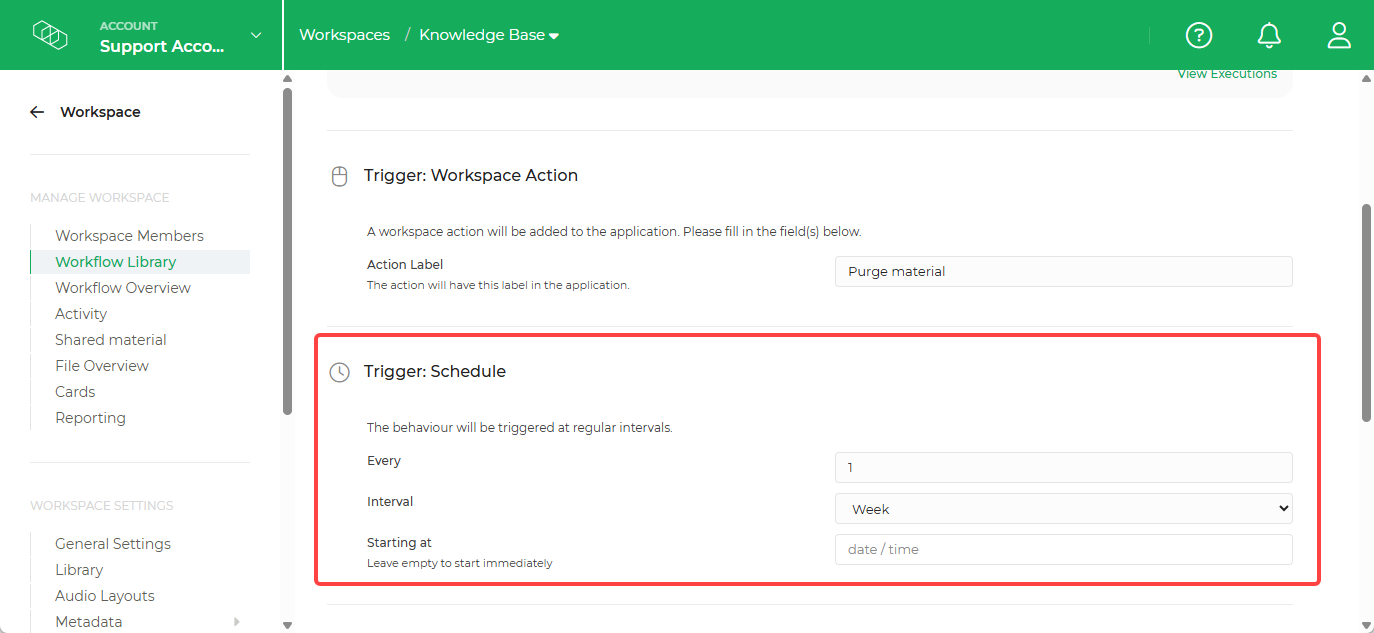
Note: Unless you select a start date in the future, the workflow will run for the first time immediately when you save the workflow.
If you do not need an automatic schedule, you have the option to delete the scheduled trigger configuration.
Workspace Action
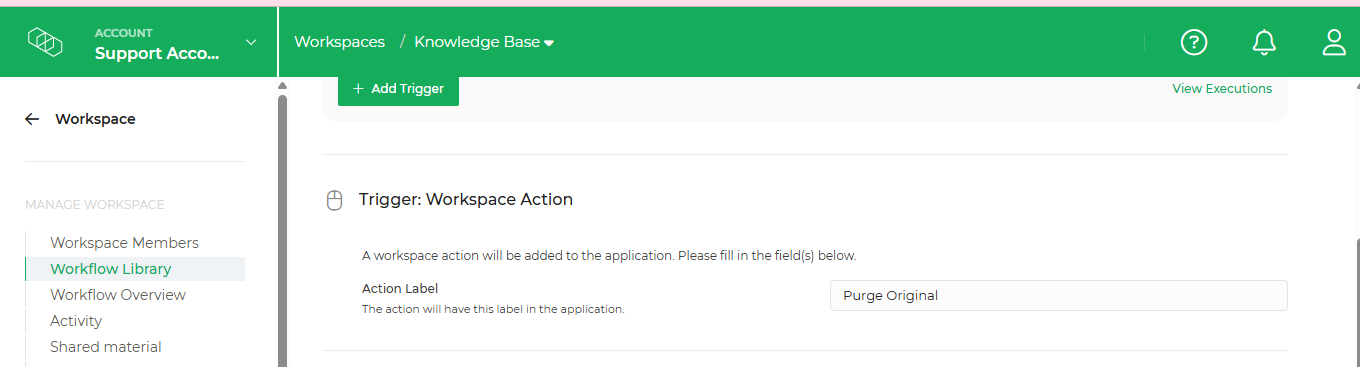
Use the Workspace Action trigger to allow users to run the workflow manually from the Workspace Actions dropdown.
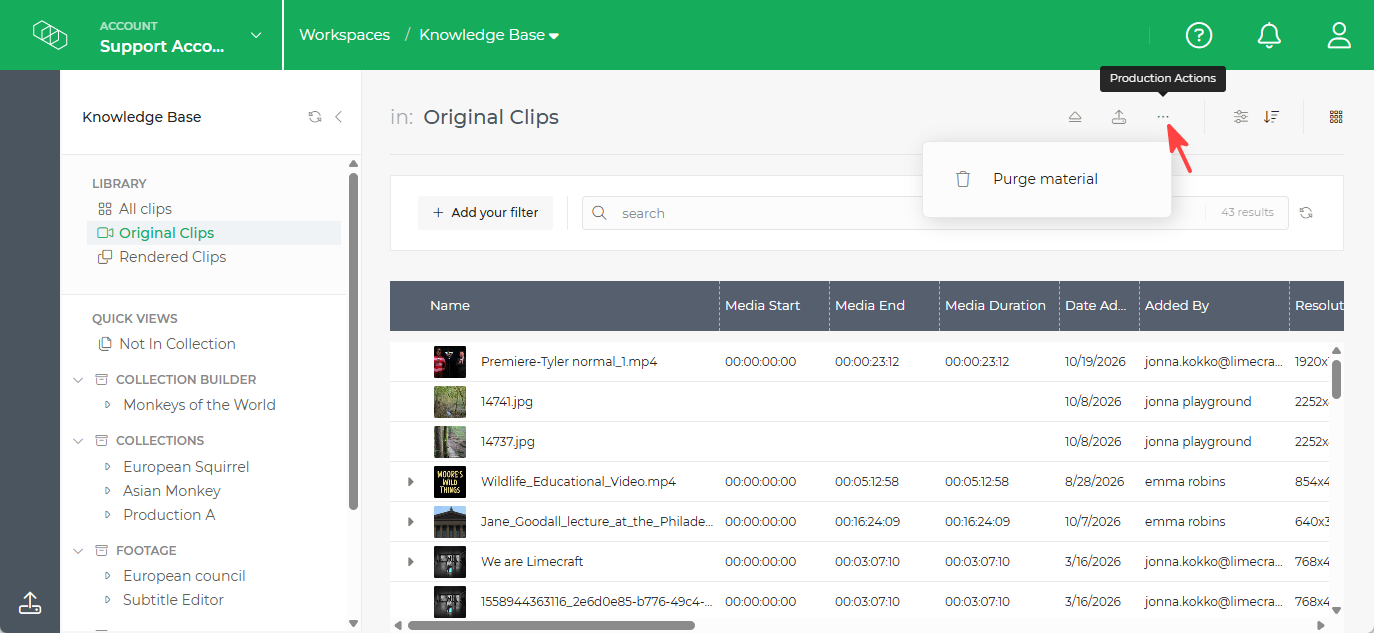
Workspace Action workflows are available for admin users only.
Enter an Action label. This is the name workspace members will see in the dropdown, such as Purge Original.
3. Select the clips
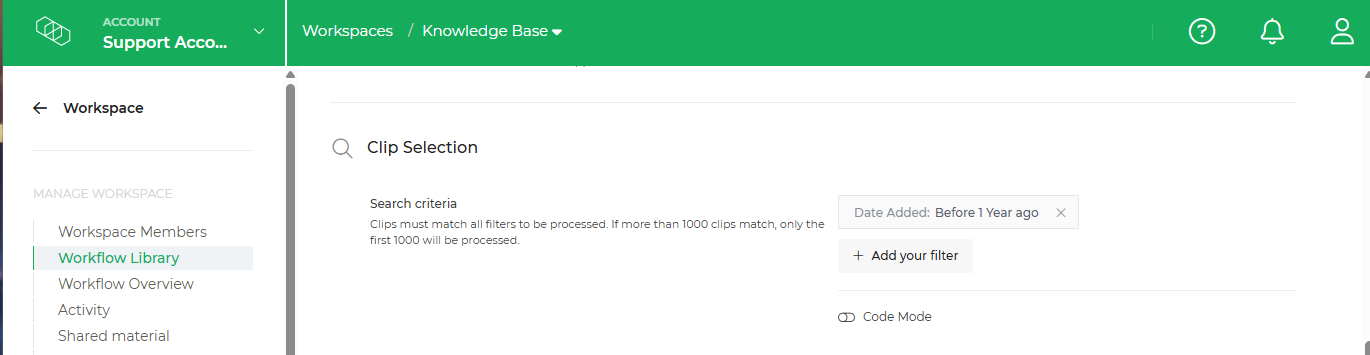
Under Clip Selection, configure a filter to determine which clips the workflow applies to.
For a purge workflow, you will typically select clips based on how long ago they were added. For example, you can select clips added more than a week or a year ago.
4. Select what to delete
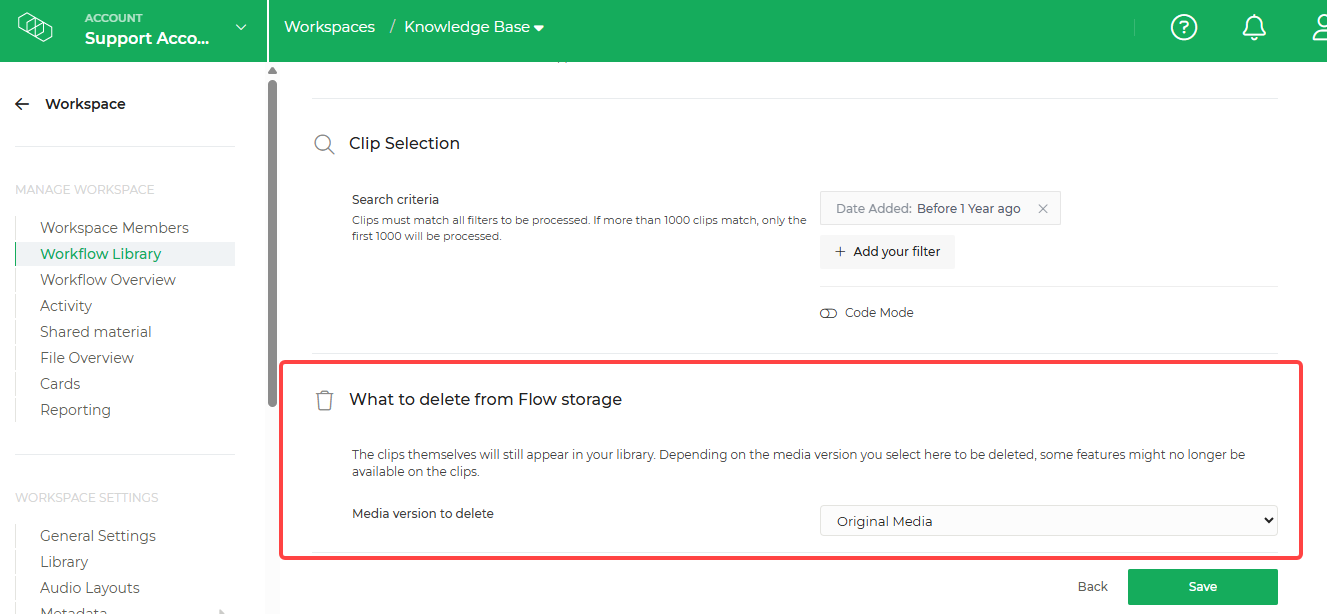
Under What to delete, select the media versions you want the workflow to remove, such as Original media.
5. Save the configuration
Save your workflow once you have configured the triggers, clip selection and media version to delete.
Example: Automatically purge original media after one year
The default purge workflow runs every week and removes original media from clips added more than a year ago.
| Setting | Value |
| Trigger | Schedule |
| Every | 1 |
| Interval | Week |
| Clip Selection | Date added - Before - 1 year |
| What to delete | Original media |
To also allow users to run this workflow manually, keep the Workspace Action trigger and set its Action label to Purge Original. Both triggers can be active simultaneously, allowing the workflow to run automatically each week and manually whenever needed.