Limecraft Workspace is a collaborative, hybrid Media Asset Management system designed to help video content producers manage large volumes of audiovisual content.
Finding the right clip shouldn't feel like finding a needle in a haystack. While Limecraft’s search and filters help you locate content, Quick Views allow you to bookmark those specific search results for yourself or your entire team.
Quick Views are dynamic: they aren’t just static lists. As new media is uploaded that matches your filters, your Quick View updates automatically.
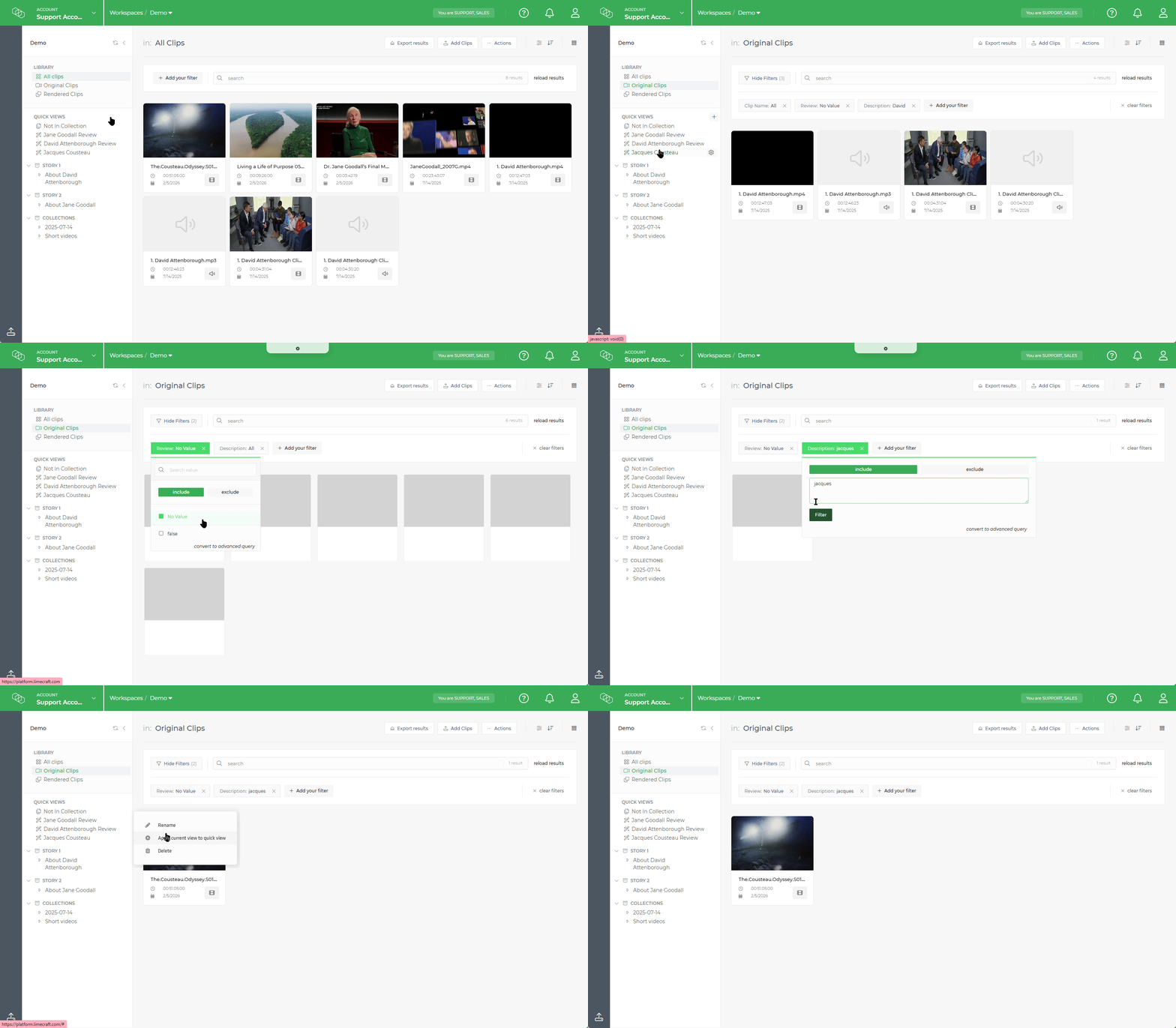
Creating a New Quick View
- Define your search: Use the search bar and filter bar to narrow down your content (Clip Name, Metadata, etc).
- Save the view: In the left navigation panel, click the + or Save icon next to the Quick Views section.
- Name: Give your search a descriptive name. All the team members have access to the same Quick Views.
Managing and Editing Quick Views
As your production evolves, you might need to tweak your saved searches.
- To Rename or Delete: Click the cogwheel icon next to the specific Quick View in the navigation panel.
- To Update Filters: 1. Click the Quick View to load it. 2. Adjust the filters or search terms in the main interface. 3. Click the cogwheel and select "Save Changes" to update the existing Quick View with your new parameters.
Best Practices for Efficiency
- Use for Deadlines: Create a Quick View for "Due Today" or "High Priority" tags to keep the team aligned.
- Production Stages: Set up views for different stages of the edit, such as "Ready for Review" or "Archived."
- Naming Conventions: Start names with the department (e.g., EDIT | To Be Processed) to keep the navigation panel organized.
Because Quick Views are live, they are the best way to monitor incoming footage from the field without having to re-apply filters every hour.