
After completing the first stages of uploading, viewing, reviewing and scrubbing your media in Limecraft, you may want to start shaping your story. While Limecraft is not a video editing platform, the Collection Builder allows you to create a rough assembly or storyboard by placing selected material on a timeline.
This article explains how to do this step by step.
Prepare Your Material
Before building your storyboard, make sure your material is properly prepared using Limecraft’s tools:
These steps help you identify and select the most relevant parts of your media before creating a sequence.
Once your material is ready, you can proceed with building your storyline.
Create a Collection
Create a new collection for your selection.
Add your selected material to the collection.
This can include:Clips
Subclips
Images
At this stage, the order does not matter yet.
Open the Collection Builder
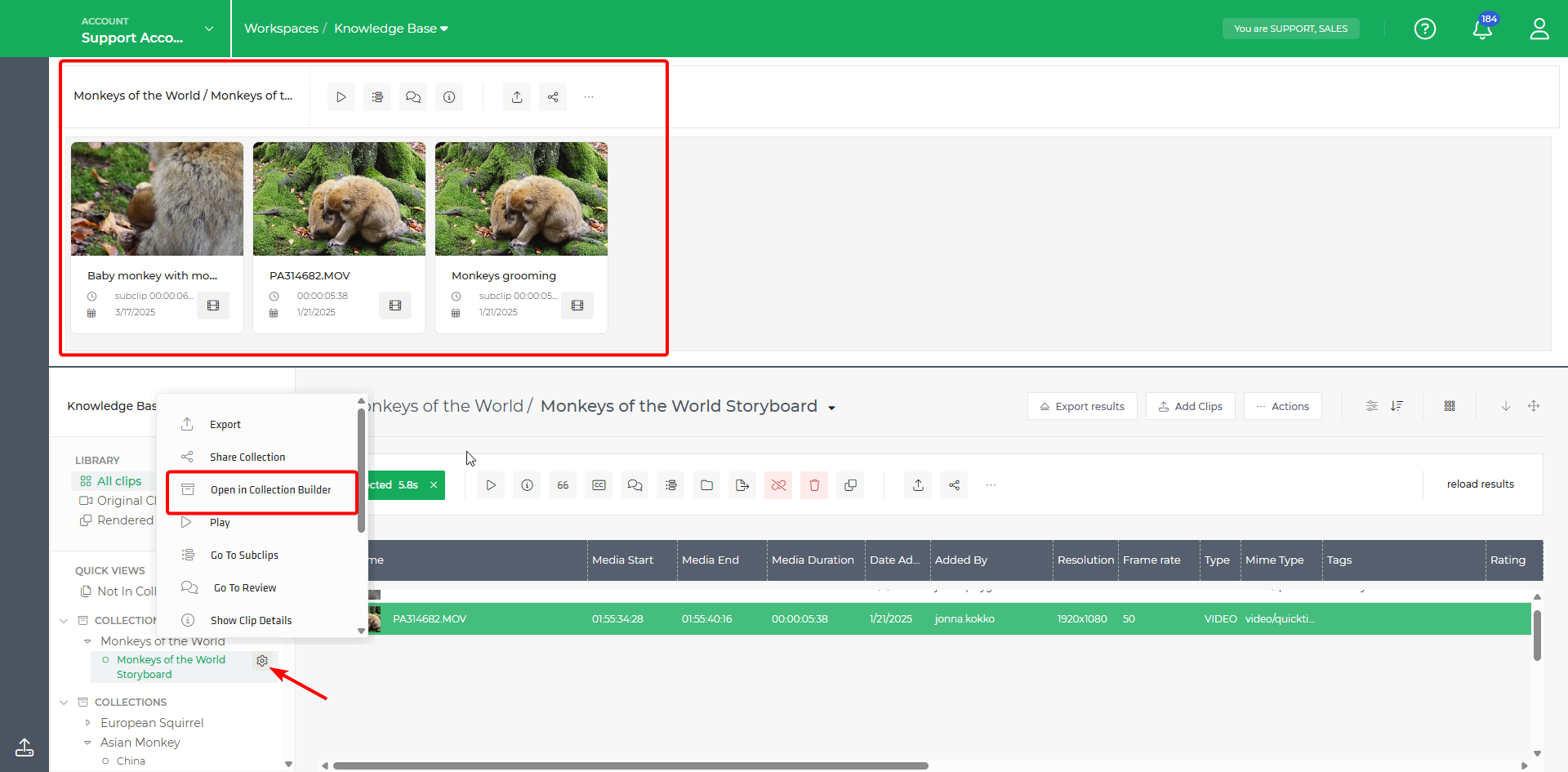
- Click on the cogwheel to the right of the collection.
- Select Open Collection Builder.
- The Collection Builder will open in a new section in the upper part of your workspace.
Organise Your Storyline
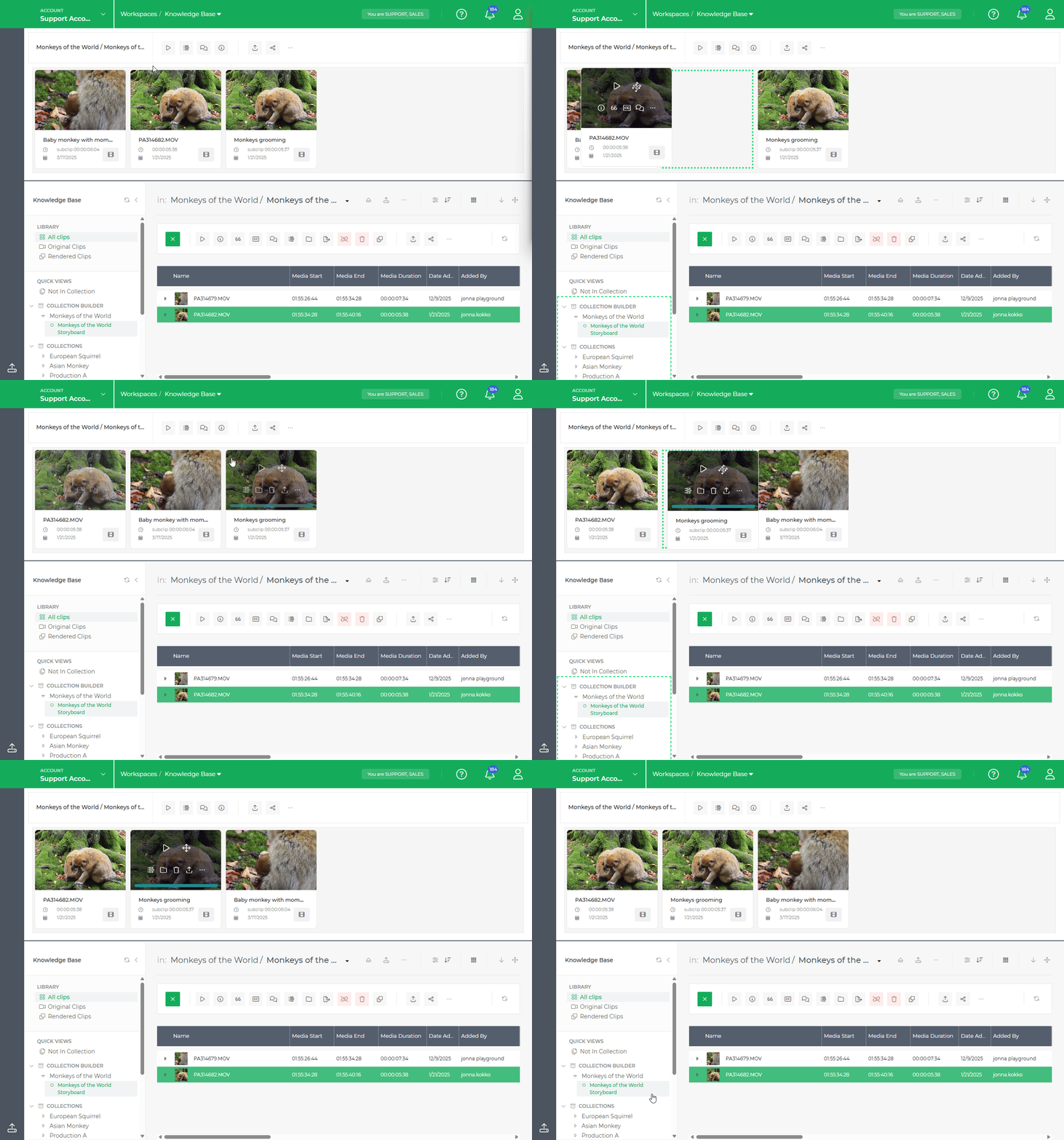
- Reorganise your material in the Collection Builder as required.
- Drag and reorder items to define the flow of your story.
- Once your rough sequence is in place, you can start collaborating on the first assembly.
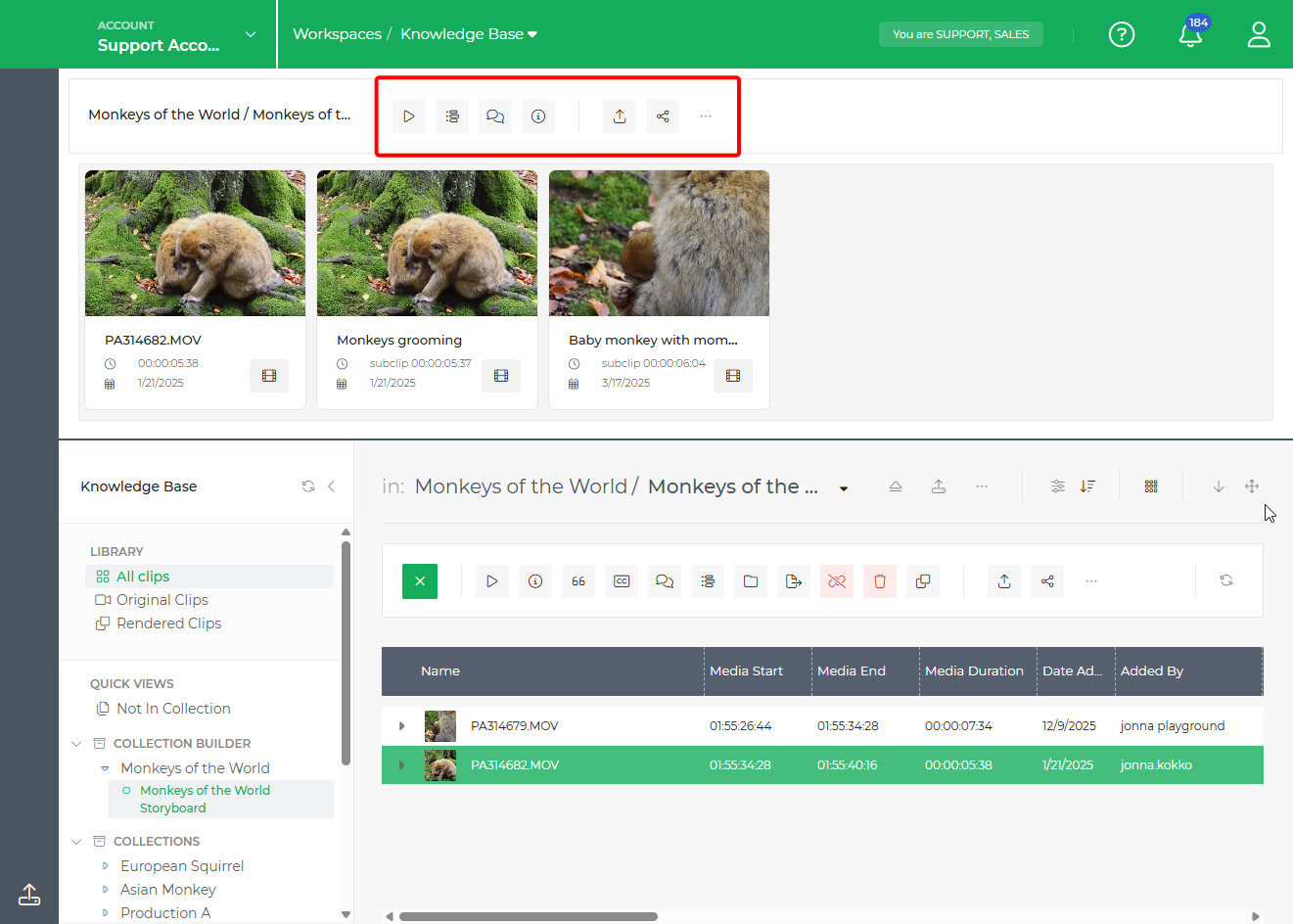
You can now:
Exit and Reopen the Collection Builder
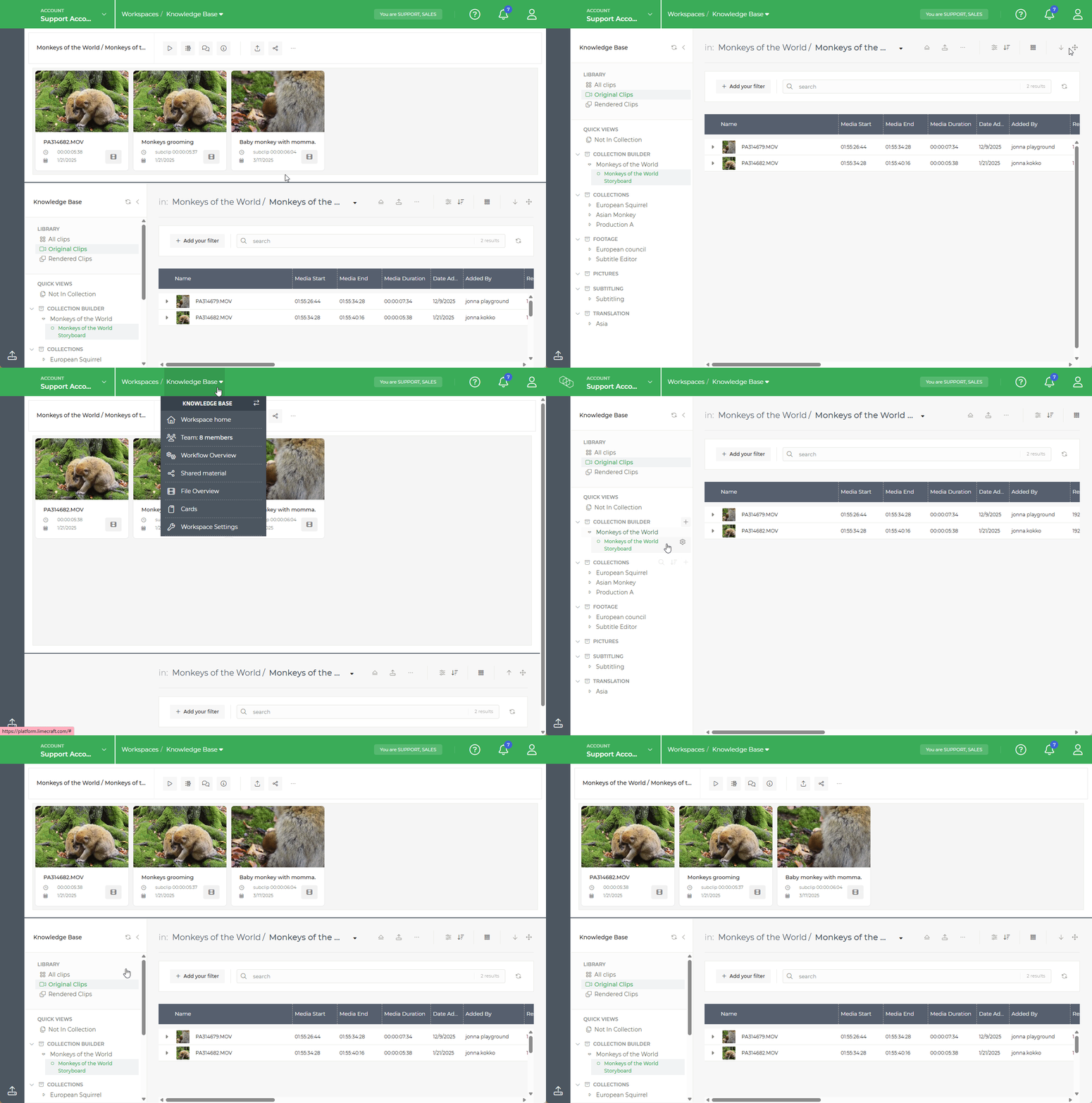
Use the Maximise Library button in the top right corner of the Media Library to open the Library.
Return by clicking on the Minimize Library button.
Exit the Collection Builder by clicking on the workspace name and Workspace Home.
Open your collection builder again with the cogwheel next to he collection.
The Collection Builder is a powerful way to start drafting your sequence directly within the Limecraft workspace. It allows you to structure your story early in the process, while final editing should be performed in a dedicated editing tool.