
Limecraft is an collaborative platform for video production. It includes instruments for accurate audio transcription, i.e. automatically converting audio and video into accurate, timecoded transcripts.
Unlike generic transcription tools, Limecraft is designed for media workflows such as subtitle preparation, sync pulls and editing, and integrates seamlessly with professional tools like Avid and Adobe. One of the options available during transcription is the automatic removal of disfluencies or fillers words such as “uhm” and “erm,” resulting in cleaner transcripts without manual post-editing. This article explains how to take advantage of automatic removal of disfluencies.
TABLE OF CONTENTS
- What are Disfluencies in Transcription?
- Why is it Important to Remove Disfluencies
- Why Using Limecraft for Transcription
- How Remove Disfluencies at the Source
- Expected Result of Removing Disfluencies
- Release Notes
When people speak naturally, they often use filler words such as “uh,” “uhm,” “erm,” or repeated false starts. In many types of content, especially interviews, documentaries, factual entertainment and reality TV, these speech patterns are completely normal. But they can also make transcripts harder to read. Also, in cases where you need an accurate representation (e.g. for derushing content or for creating subtitles), it requires considerable editorial work to condense and clean the language.
Limecraft lets you automatically remove these disfluencies during transcription, so you can start from a clean transcript without losing the timing and workflow benefits of professional speech-to-text.
What are Disfluencies in Transcription?
Disfluencies are the small interruptions and filler expressions that occur in spontaneous speech. Typical examples include:
- “uh”
- “uhm”
- “erm”
- repeated starts
- brief verbal hesitations
They are common in unscripted speech, but they usually do not add meaning to the transcript. When the goal is a readable transcript, a paper edit, or a subtitle draft, removing them makes the text much easier to work with.
Why is it Important to Remove Disfluencies
A transcript with every hesitation left in place may be technically complete, but it often takes longer to review and clean up.
Removing disfluencies is especially useful when:
- you need clean text for paper edits or content review
- you plan to use the transcript of an interview or colloquial speech as the basis of a news item
- you want to use the transcript as input for subtitling or localisation
In colloquial language and in workflows where very high transcript accuracy is needed, removing disfluencies will reduce post-editing time by at least 50%.
This matters even more in any professional audiovisual workflow, where transcripts are not just reference documents but often the first step towards postproduction. In Limecraft, transcripts are used to generate sync pulls, same language or translated subtitles, paper edits and downstream editing workflows. The cleaner the transcript, the more time you are saving downstream.
Why Using Limecraft for Transcription
Many transcription tools are built for meeting notes or general-purpose dictation. Limecraft is different: our audio transcription workflow is highly optimised for production of audiovisual media.
That means the transcript is not an isolated text file. The output can be used as the starting point of multiple professional media workflow, where timed text can be used for:
- the transcript is indexed, so researchers and documentary producers use it for surfacing relevant clips
- it isthe starting point for paper edits or ("sync pulls")
- accurate transcripts can be segmented in subtitle boxes using configurable spotting rules
- export to professional editing environments (export in AAF or using ScriptSync)
Because Limecraft is seamlessly embedded into professional tools and workflows, so removing disfluencies at the source has a massive cumulative time saving effect during postproduction.
How Remove Disfluencies at the Source
When you start a transcription job in Limecraft, you can enable the option to automatically remove disfluencies or filler words via the transcription settings.
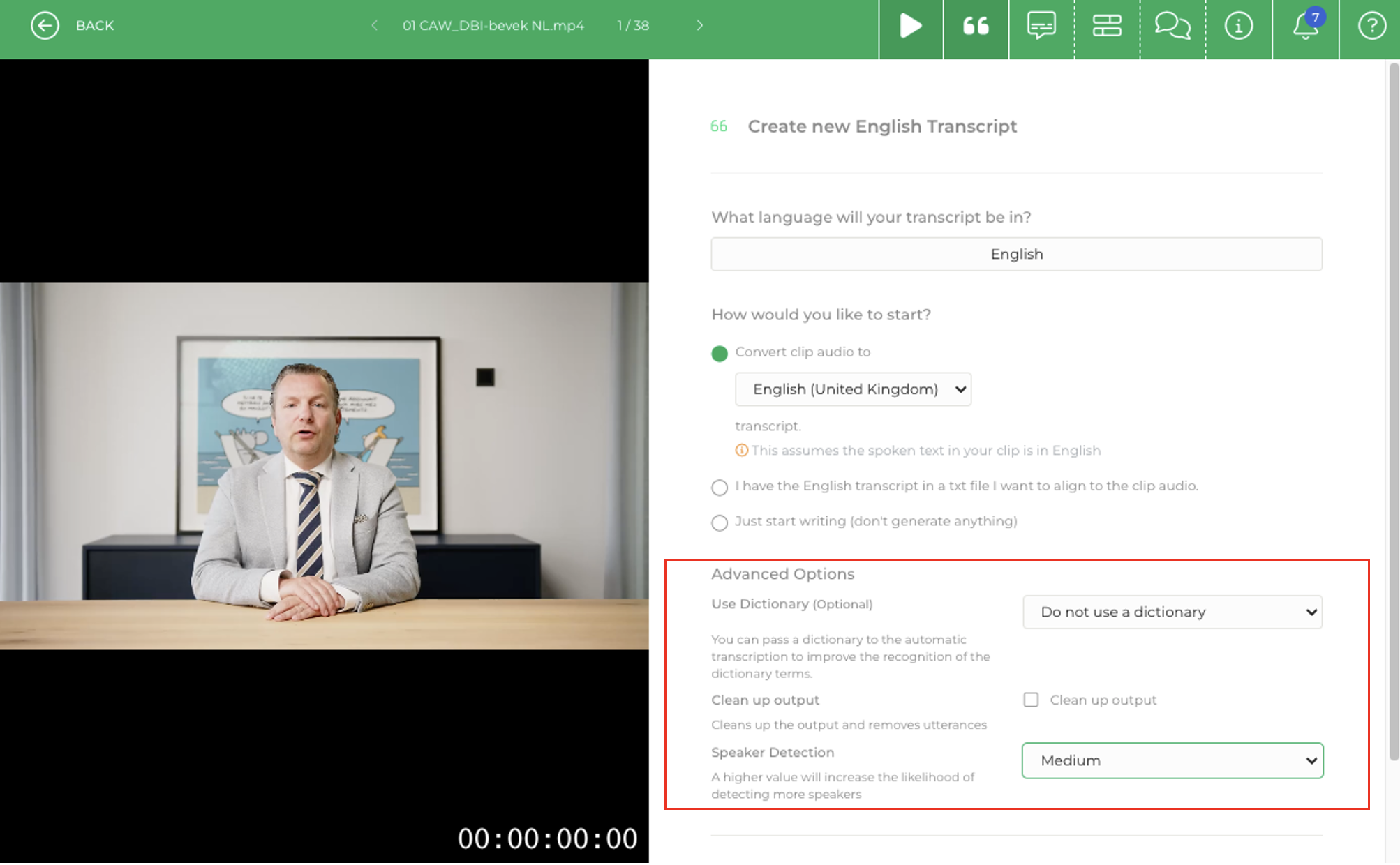
Open the transcription action for your clip, or select multiple clips to start a batch transcription. In the transcription dialogue, choose the option to generate an automatic transcript.
Advanced Options > Enable Remove Disfluencies > Start the transcription job.
Expected Result of Removing Disfluencies
With the option enabled to remove disfluencies, the generated transcript is condensed and it becomes cleaner and easier to read. Filler words and minor spoken hesitations are removed automatically, while the transcript remains suitable for further review and editing. Compared to manual post-editing of colloquial language, it will save you 50% or the time for post-editing or more.
For compliance, legal review, or verbatim transcription use cases, you may prefer to keep every utterance.
Release Notes
Disfluencies removal was rolled out as part of the 2026.2 release, but is currently available for English only.