
The Limecraft Workspace allows you to view and review video material directly in your browser.
This article explains how to open videos from the Library and use the integrated player to review your material.
TABLE OF CONTENTS
- Opening video from the Library
- Browsing a selection of videos
- Using the video player
- Reviewing material
- Reviewing videos with your team
- Related articles
Opening video from the Library
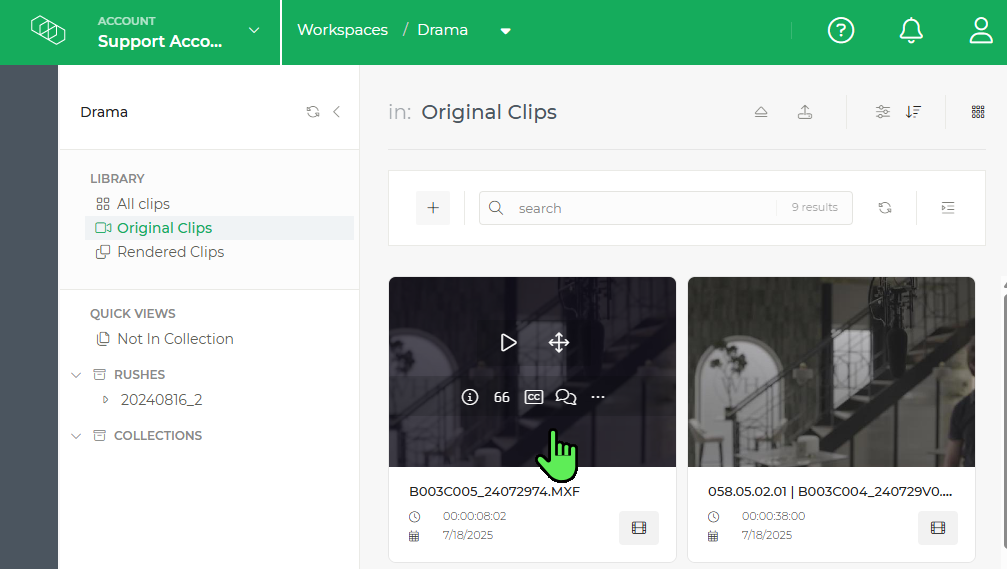
To view a video in your Limecraft Workspace:
- Search for the video you want to view.
- Click on the Player icon to open the video player only.
- Click another icon to open the selected application together with the player.
Browsing a selection of videos
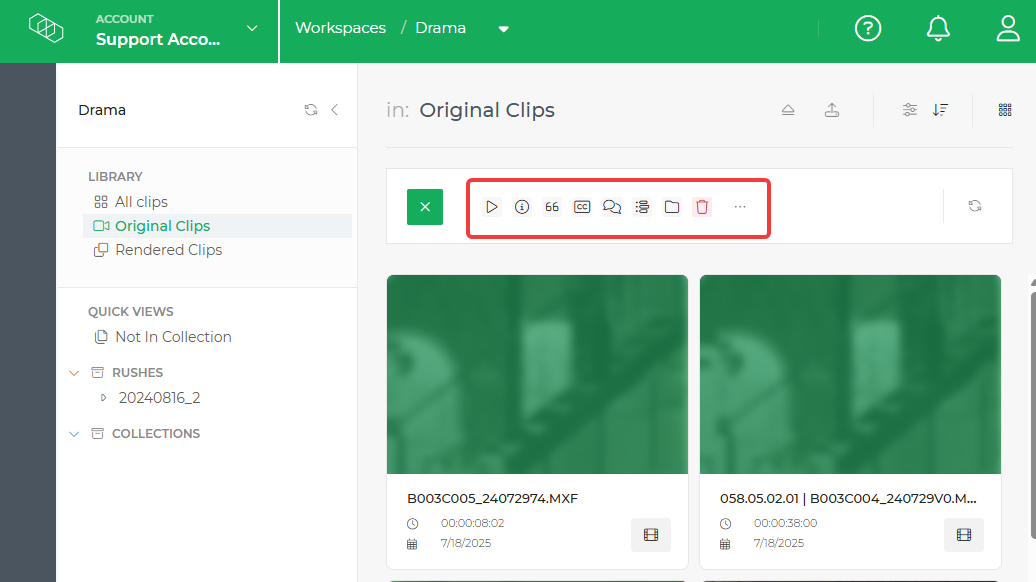
To browse multiple videos without returning to the Library:
1. Select the videos you want to view.
2. Click the desired icon on the thumbnail or in the toolbar.
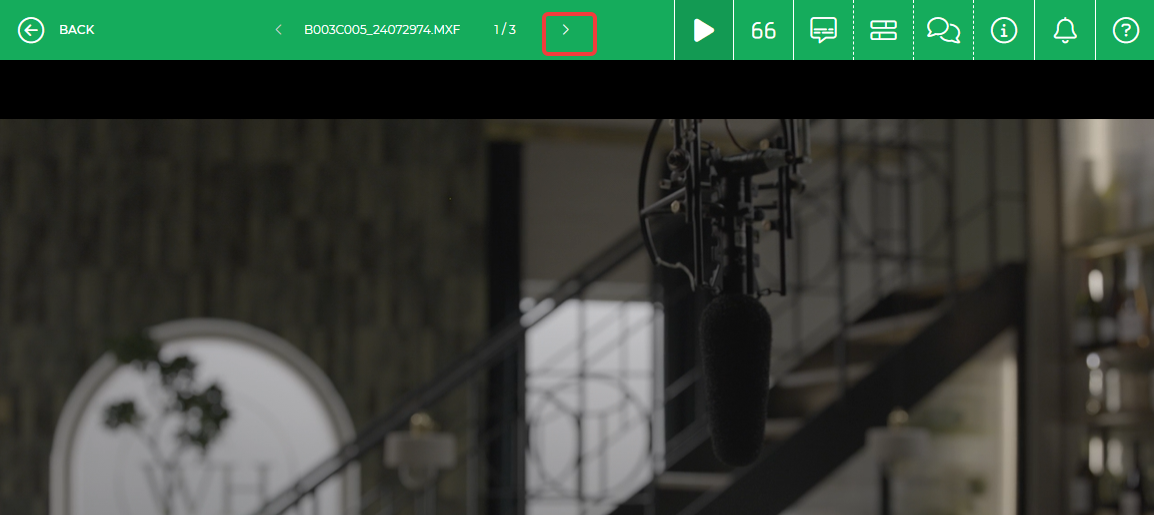
3. Use the toolbar next to the clip name in the player to navigate between the selected videos.
Opening your selection
Browsing your selection
 Using the video player
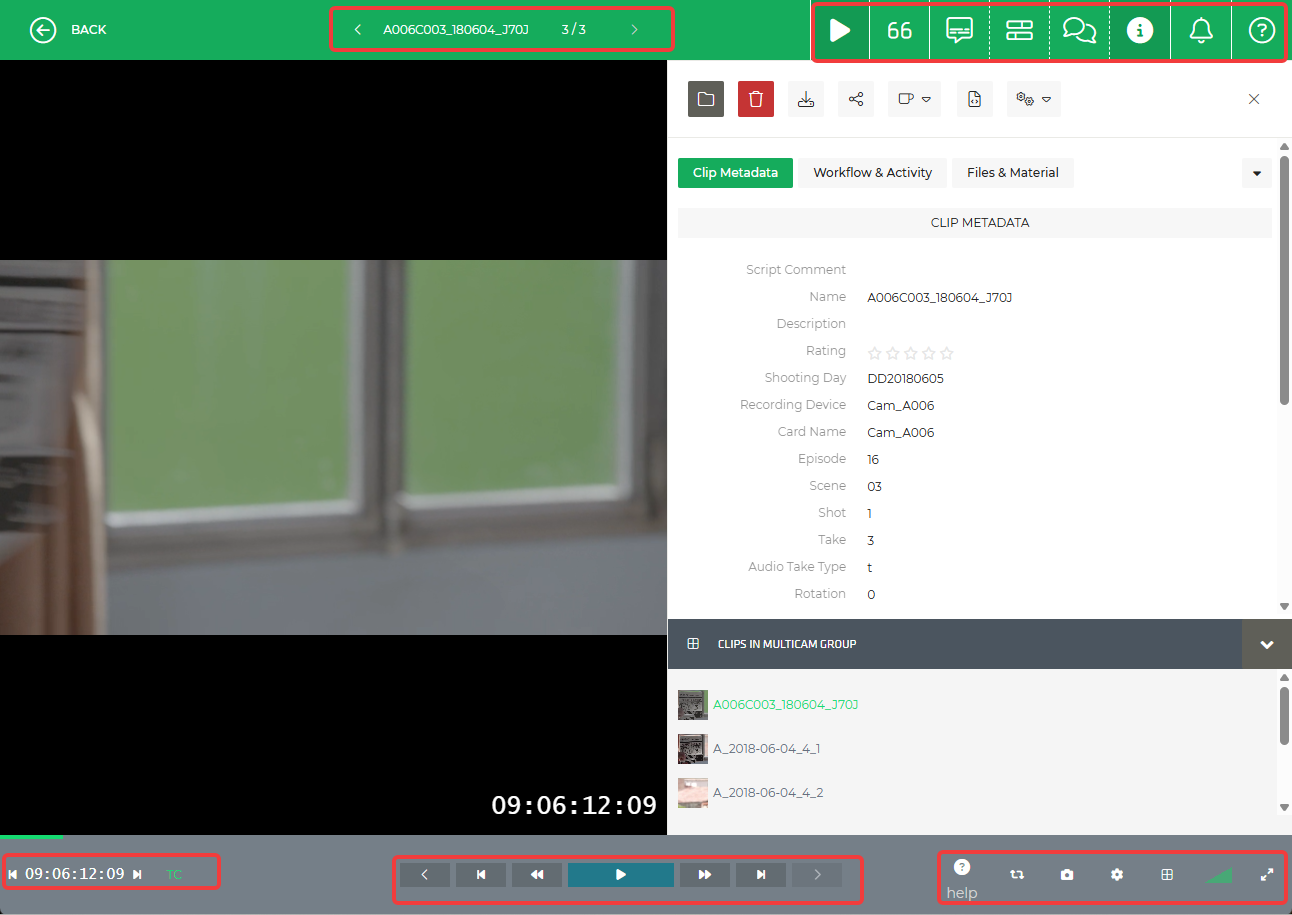
The player provides the controls you need to review your material.
You can:
- Play and pause the video.
- Navigate through the timeline.
- Move to a specific timecode.
- Adjust the playback speed.
- Enable full-screen playback.
- Adjust the playback volume.
- Play a selection of clips back to back.
- Select the playback quality.
- Switch to the Multicam Player when available.
Reviewing material
When reviewing a video, you can combine the player with the available Workspace tools by opening the relevant application together with the player.
For example, you can:
- View clip information and metadata.
- View or generate transcripts and subtitles.
- Add comments for collaboration.
- Create selections or subclips from the material.
The available options depend on the applications enabled in your Workspace and your user permissions.
Reviewing videos with your team
You can collaborate with your team directly in Limecraft Workspace by adding comments, sharing feedback and still keeping all review activities connected to the original media.
For external reviews, you can use the sharing functionalities to give controlled access to specific clips or selections. This allows you to share only the material you want others to review, without creating additional copies of your media.
Related articles
How to Use Comments for Clip Review