
Review multicamera recordings more efficiently with the Multicam Player in Limecraft Workspace. It displays up to four synchronised camera angles in a single view, making it easier to compare footage, check coverage and add time-based comments during review.
This article explains how to open the Multicam Player, select camera angles, change the leader clip and comment on multicamera footage.
What is the Multicam Player?
The Multicam Player lets you view up to four synchronised camera angles at the same time in Limecraft Workspace. It helps you compare recordings, check camera coverage and review multicamera footage without switching between clips.
Before you begin
Before you can use the Multicam Player, your media must be ingested into your Limecraft Workspace using Limecraft Edge. During Media Sync, Limecraft Edge identifies videos that were recorded simultaneously and automatically assigns them to the same multicam group.
Once a multicam group has been created, you can view up to four synchronised videos simultaneously in the Multicam Player.
The Multicam button is only displayed for clips that are part of a multicam group. The multicam group must contain clips recorded on different recording devices.
When to use the Multicam Player
The Multicam Player is useful for workflows such as:
- Reviewing multi-camera interviews or panel shoots in sync
- Quickly checking coverage across cameras for broadcasting and live events.
- Selecting the best angle per moment for editing.
Using the Multicam Player
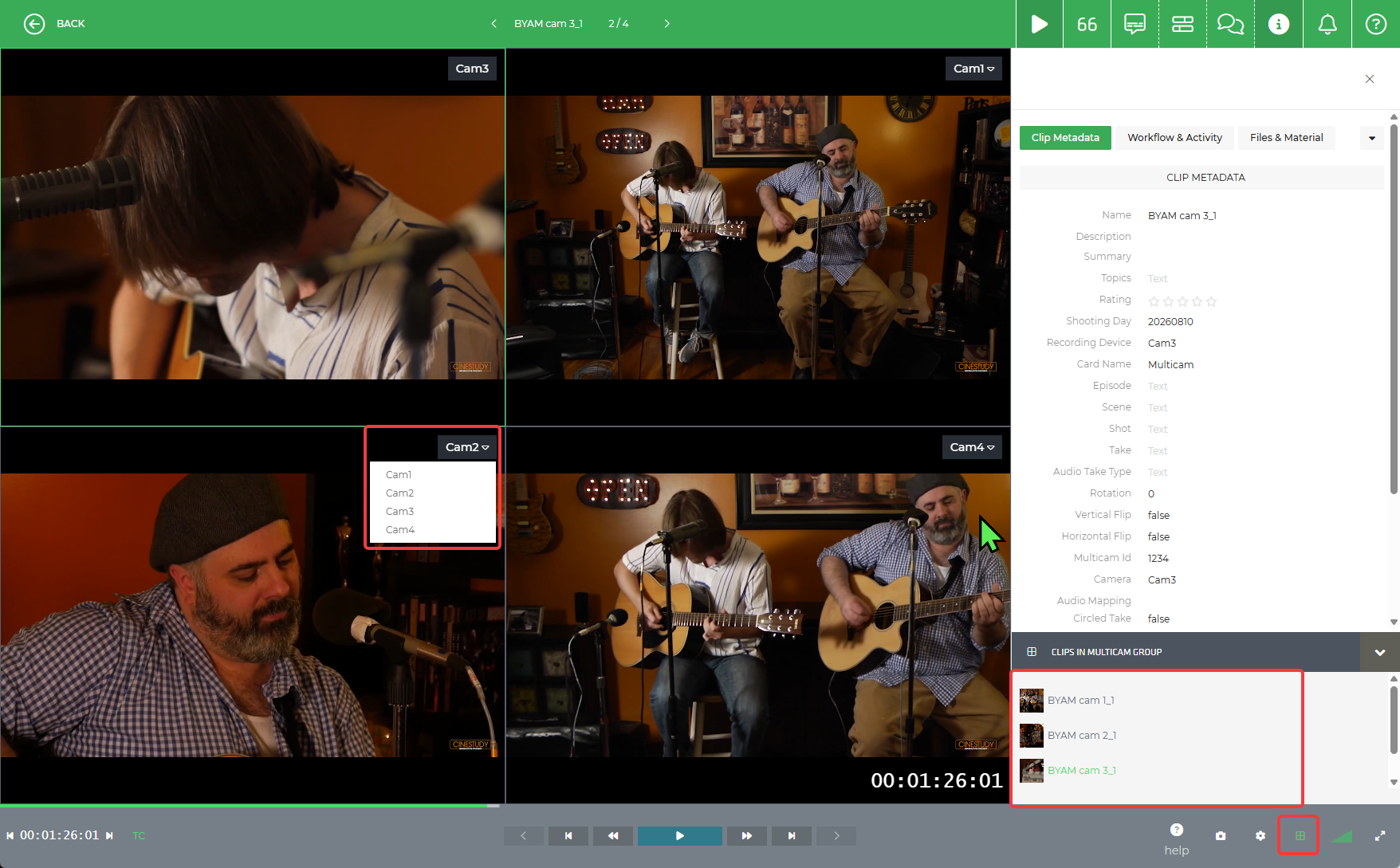
If a clip belongs to a multicam group, the Multicam button is displayed automatically in the player. Click the button to open the Multicam Player.
The clip you opened first becomes the leader. The playback position of all other camera angles is synchronised with the leader, allowing you to compare the recordings at the same point in time.
All comments created in the Multicam Player are associated with the leader clip. If you want to add comments to a different clip in the multicam group, select that clip as the leader before commenting.
The clips in the multicam group are listed in the Clip information panel. To change the leader, click one of the listed clips. The selected clip opens in the Multicam Player and becomes the new leader, while the remaining camera angles stay synchronised.
The Multicam Viewer displays four video panes. Use the drop-down list in each pane to select which camera angle you want to display. You can show different combinations of camera angles to compare your recordings during playback.
Tip
If the Multicam button is not displayed, make sure the media has been ingested with Limecraft Edge and that the clip belongs to a multicam group containing recordings from different recording devices.
Related Articles
Multicam Offload with Limecraft Edge