
Limecraft automatically transcribes audio and video into accurate, timecoded text, giving journalists and edit producers a fast starting point for logging, search, subtitles, paper edits and post-production. Unlike generic speech-to-text tools built for meetings or dictation, Limecraft is designed for audiovisual media workflows, where timing, speaker structure and downstream editing matter.
This article explains how to start an automatic transcription job in Limecraft, how to fine-tune the result, and how the transcript can be used across your production workflow.
TABLE OF CONTENTS
- Audio Transcription in Media Production
- How to Start a Transcription Job
- The Result of Automated Transcription
- Leveraging Transcription in Your Workflow
- Cheat Sheet
Audio Transcription in Media Production
Audio transcription is the process of converting spoken content in an audio or video file into text. In Limecraft, that text is not just a plain transcript: it is searchable and timecoded, so every word stays linked to the media it came from.
That makes it much more useful than a simple text document, because it allows you to navigate directly from words to moments in the footage.
Automatic transcription is often the first step in turning spoken content into production metadata. Once generated, the transcript can support subclipping, subtitle creation, AI-powered summaries and chapters, multilingual search, and accessibility workflows such as subtitling, localisation, or AI dubbing.
What is Special when Transcribing Audio in Media Production?
In audiovisual production, the transcript is never a goal on its own; always a means to a purpose. Usually the starting point for downstream editorial work. Producers, journalists, researchers and editors use transcripts to find quotes quickly, prepare paper edits, create sync pulls, segment subtitles and move material more efficiently into post-production.
That is why audio transcription for audiovisual media has different requirements from general-purpose transcription. The text needs to remain linked to timecode. Speaker changes need to be handled in a useful way. The result needs to be readable enough for editorial review, but also structured enough to feed subtitle and editing workflows. In Limecraft, transcription can be refined with options such as disfluency filtering and speaker sensitivity, and then quality-controlled in the Transcript Editor before being used further downstream.
What sets Limecraft apart?
What sets Limecraft apart is that its transcription workflow is built for professional audiovisual production rather than for meetings or office productivity. Limecraft transcripts are designed to become production assets: searchable metadata that can be used for research, paper edits, subtitle preparation and export to editing environments.
Limecraft also fits naturally into professional post-production workflows. The transcript can be used to surface relevant clips, serve as the basis for sync pulls, and support subtitle segmentation with configurable spotting rules. It can also be exported into professional editing environments, including AAF-based workflows and ScriptSync-related workflows. The release notes further underline this editorial positioning by describing AAF export templates that bring Limecraft comments and transcripts into Avid as native markers.
How to Start a Transcription Job
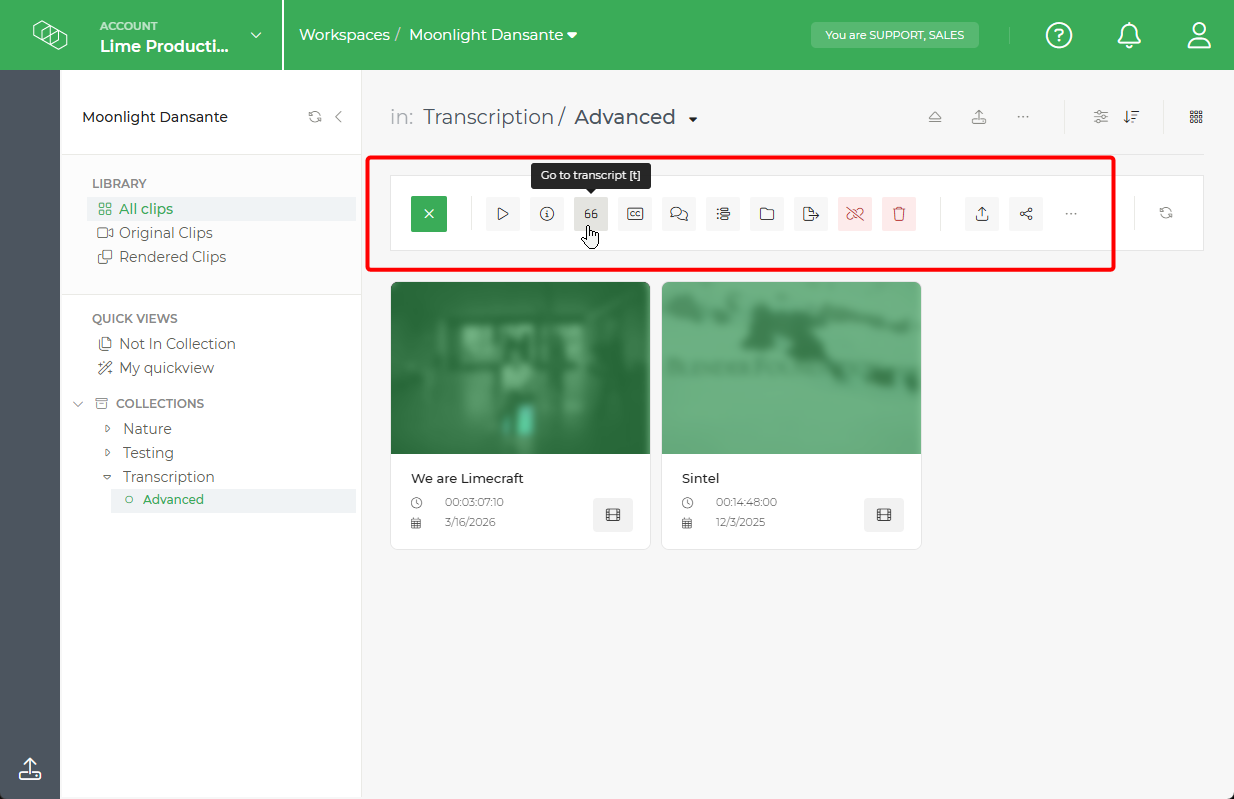
Find the Go to transcript action on a clip thumbnail and click it.

To start a batch job, select several clips simultaneously. Then, locate and click the Transcription icon in the top toolbar to open the configuration dialogue for all selected media.
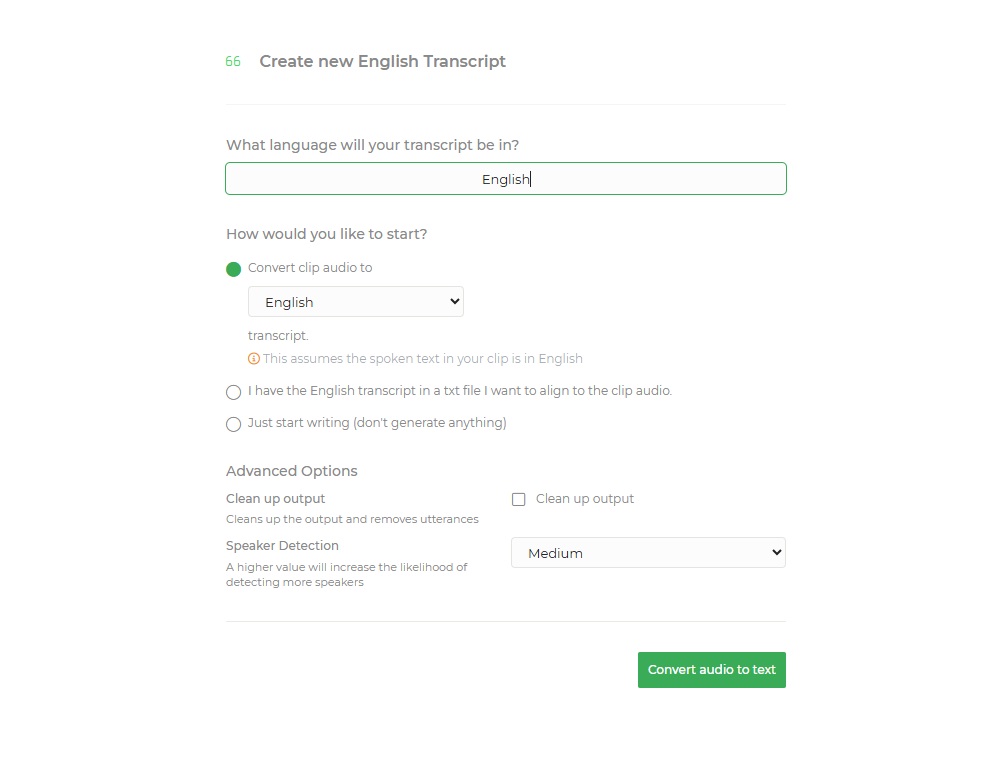
In the dialogue box that appears, select the first option to begin your automatic transcription. You can also use the Advanced Options to refine your results:
Remove Disfluencies: Automatically strip out filler words like "uhm" or "uh." NOTE: This is only available for English. (More info on removing disfluencies)
Adjust Speaker Sensitivity: Set this to High for many speakers or Low if there are only a few speakers. (More info on adjusting Speaker Sensitivity)
The Result of Automated Transcription
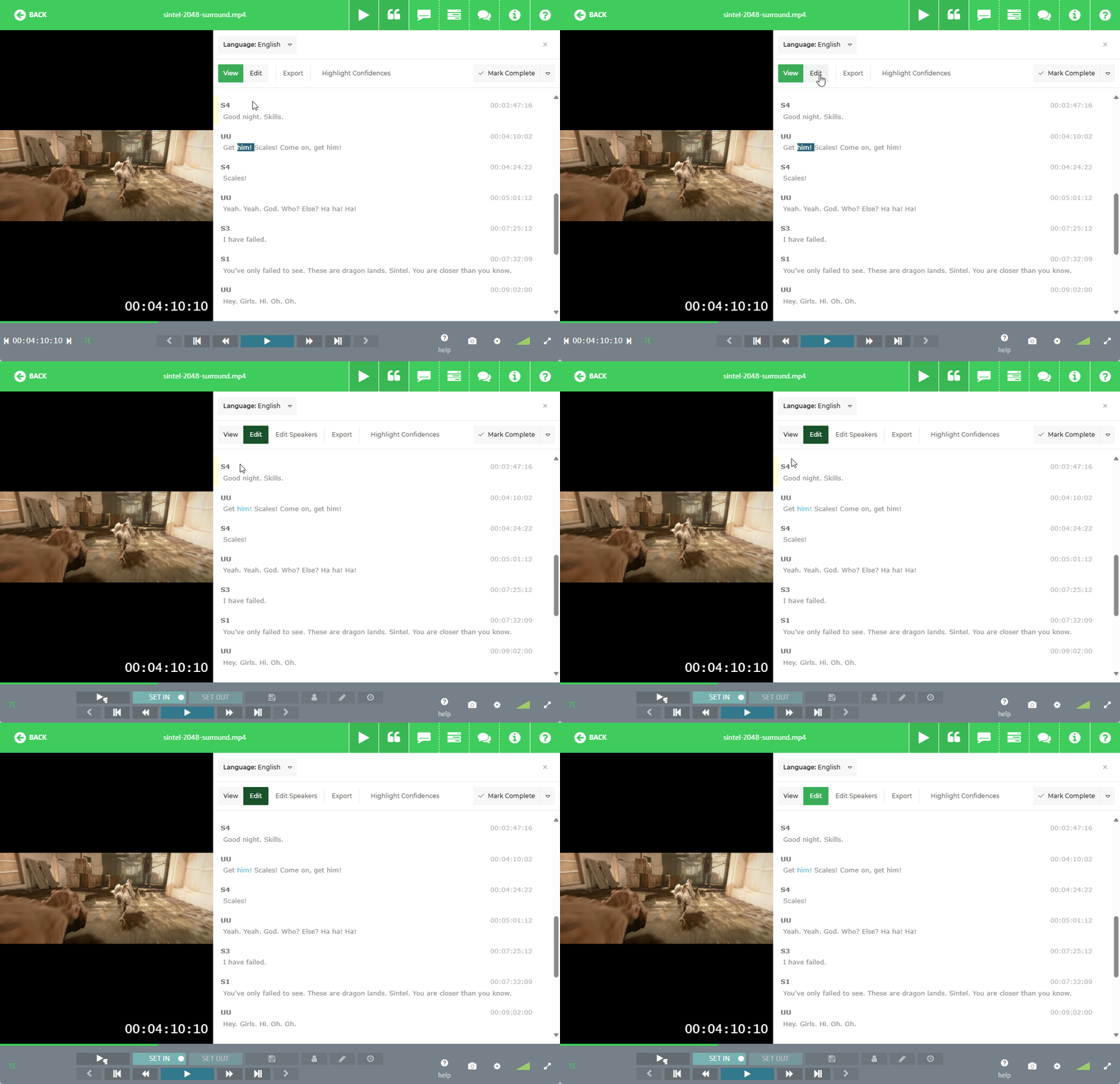
Once the transcription job is complete, Limecraft presents the result as a timecoded transcript linked directly to the source media. From there, you can review the text, correct recognition errors, fine-tune speaker attribution and prepare the transcript for the next step in your workflow. For more info on that part of the process, continue with the article on editing transcripts in the Limecraft Transcript Editor.
Leveraging Transcription in Your Workflow
Limecraft Workspace transforms your transcribed audio into a versatile production asset. By turning spoken word into metadata, you can:
- Build Global Libraries: Make your media searchable across borders with automatic translation into multiple languages.
- Speed Up Review: Get an instant overview of your content with AI-generated summaries, chapters, and titles.
- Boost Engagement: Improve accessibility and SEO visibility by automatically generating subtitles.
- Streamline Editing: Create collaborative paper edits directly in the browser and export them straight to your NLE (edit suite).
Cheat Sheet
Download the cheat sheet, print it, and hang it on your wall! Download Transcriber Editor Cheat Sheet